
1. Getting started
Hardware / Sanitary is GST billing, stock and accounts software made for billing for hardware, paint & sanitary shops. It runs on your own website (hosting) or on your own Windows computer - your business data stays with you. Made for this business: Brand & model, items in Pcs / Mtr / Kg / Ltr, contractor dues.
- You need: a licence (bought on ajonbill.com), and either hosting with PHP 8.1+ and MySQL / MariaDB, or a Windows 10 / 11 computer.
- Two parts: your ajonbill.com account (licence, downloads, add-ons, renewals, support) and your billing software (bills, stock, accounts).
- Keep this manual open in another tab - every chapter is step by step with real screens.
2. Buy a licence & your account
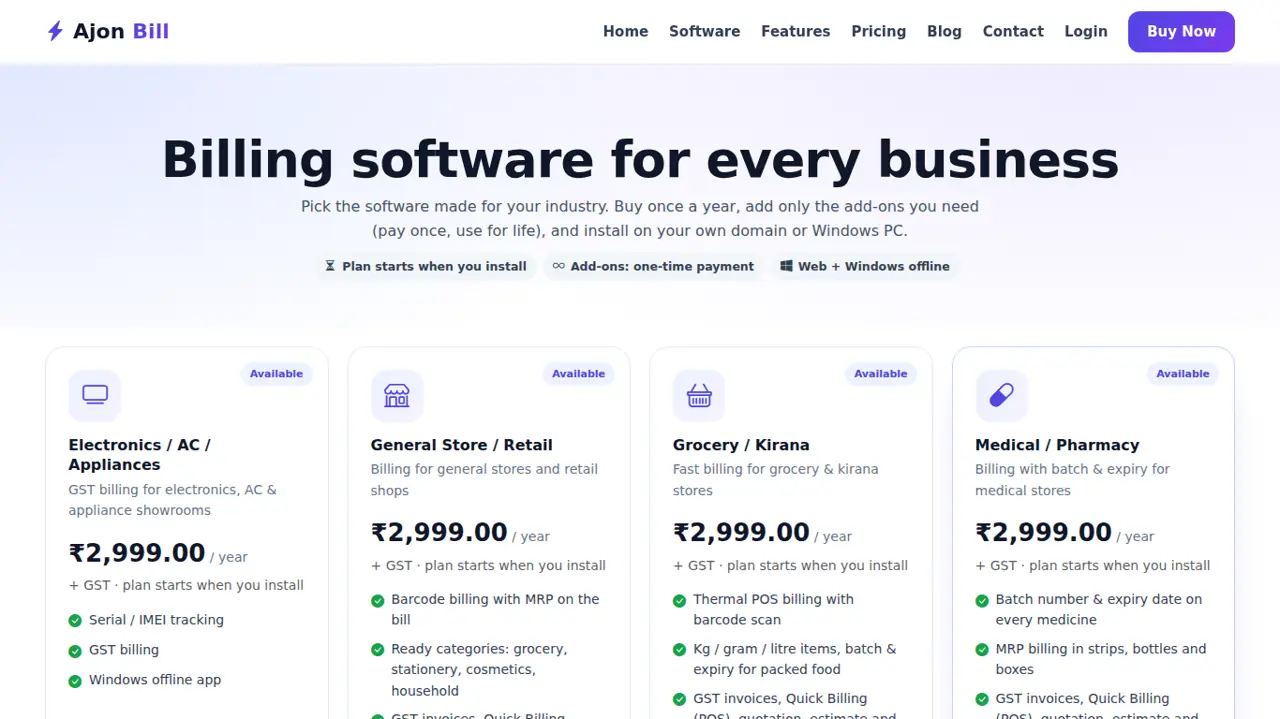
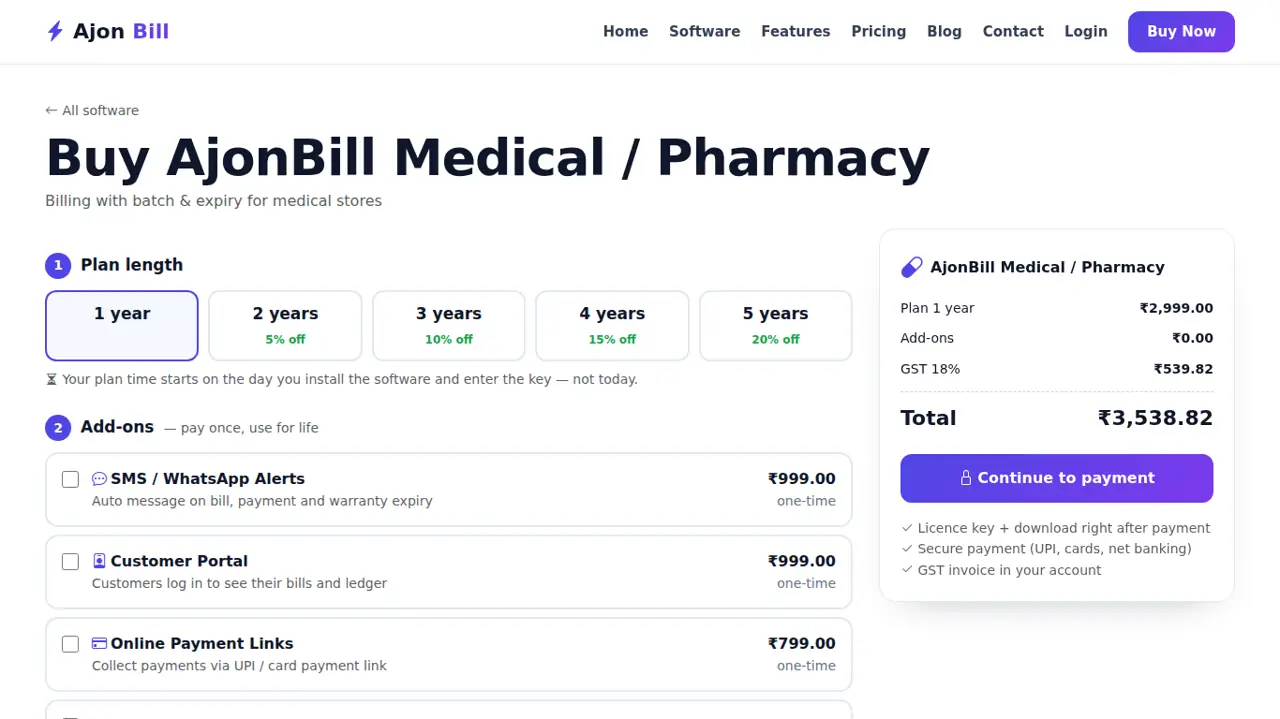
- Open www.ajonbill.com → Software, choose Hardware / Sanitary and click Buy now.
- Choose the years, tick any add-ons you want now (you can add them later too) and pay online.
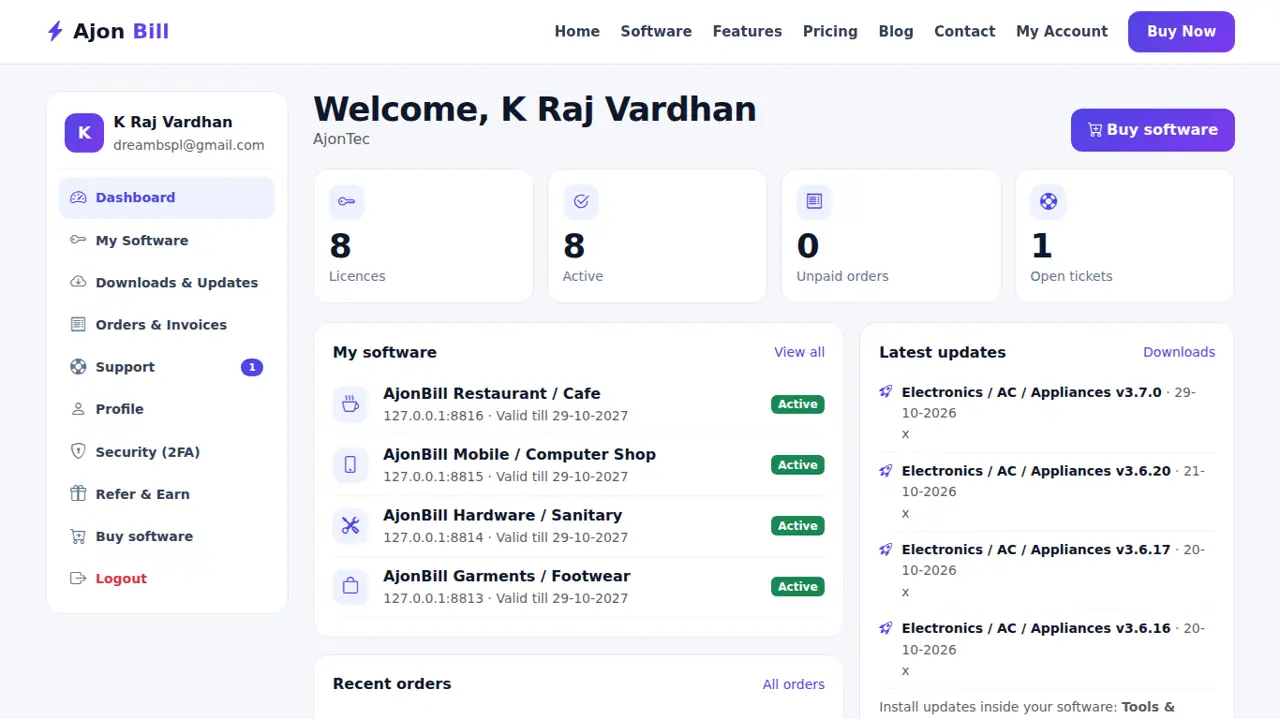
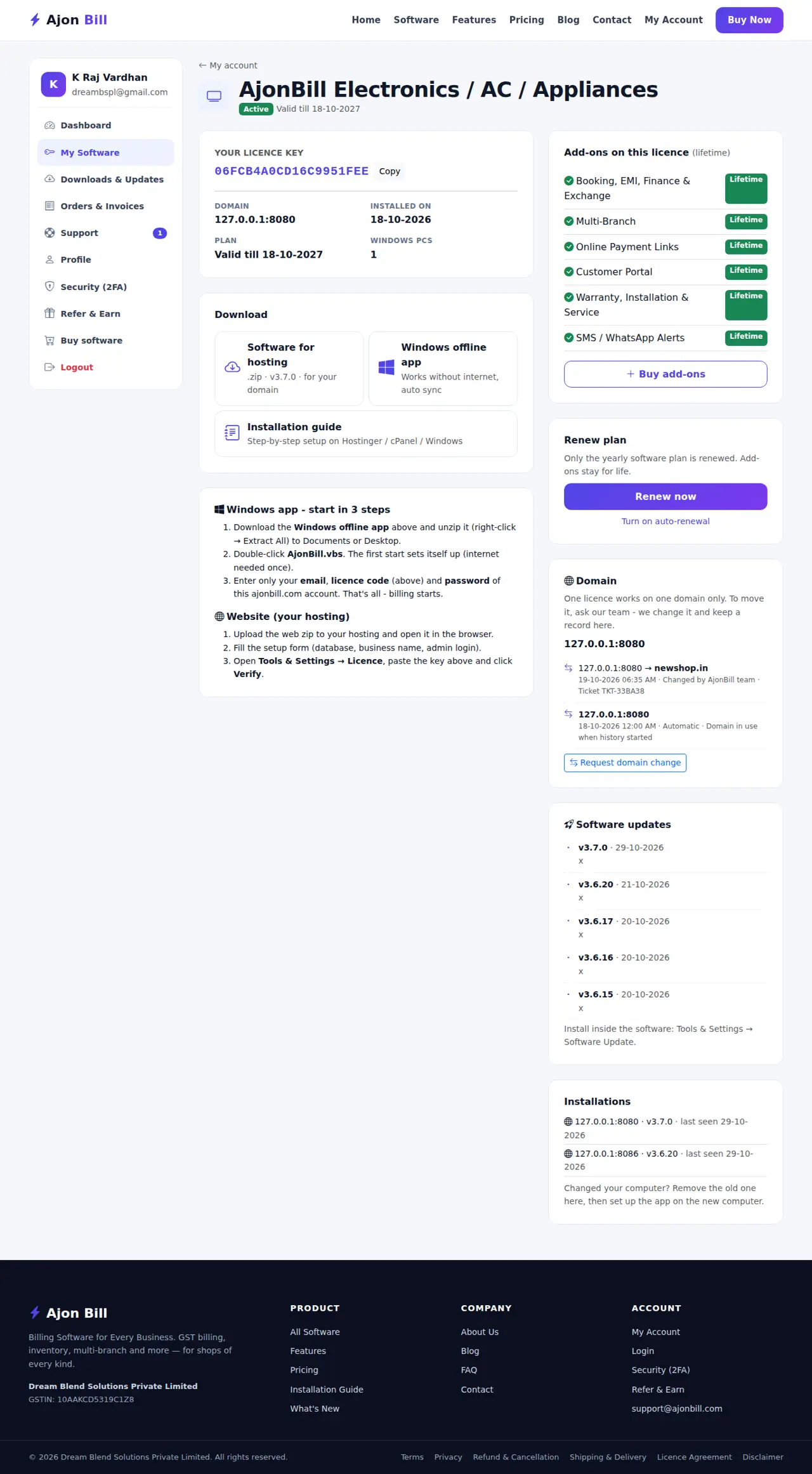
- Your licence code and downloads appear at once in My Account → My Software and are emailed to you.
- Your plan starts on the day you install, not on the day you pay.
3. Install on your hosting (website)
3.1 Make a database (Hostinger / cPanel / CloudPanel)
- Log in to your hosting panel → Databases (Hostinger: Websites → Manage → Databases → MySQL Databases; cPanel: MySQL Database Wizard; CloudPanel: Sites → your site → Databases → Add Database).
- Create a database, a user and a strong password. Write the database name, user, password and host (usually
localhost).
3.2 Upload the software
- In My Account → My Software download the website package (zip).
- Hosting panel → File Manager → open
public_html(CloudPanel:htdocs/your-domain) → Upload the zip → Extract it there. - Make sure the
storagefolder is writable (permission 775). - Turn on SSL (https) for your domain in the hosting panel.
3.3 Run the installer
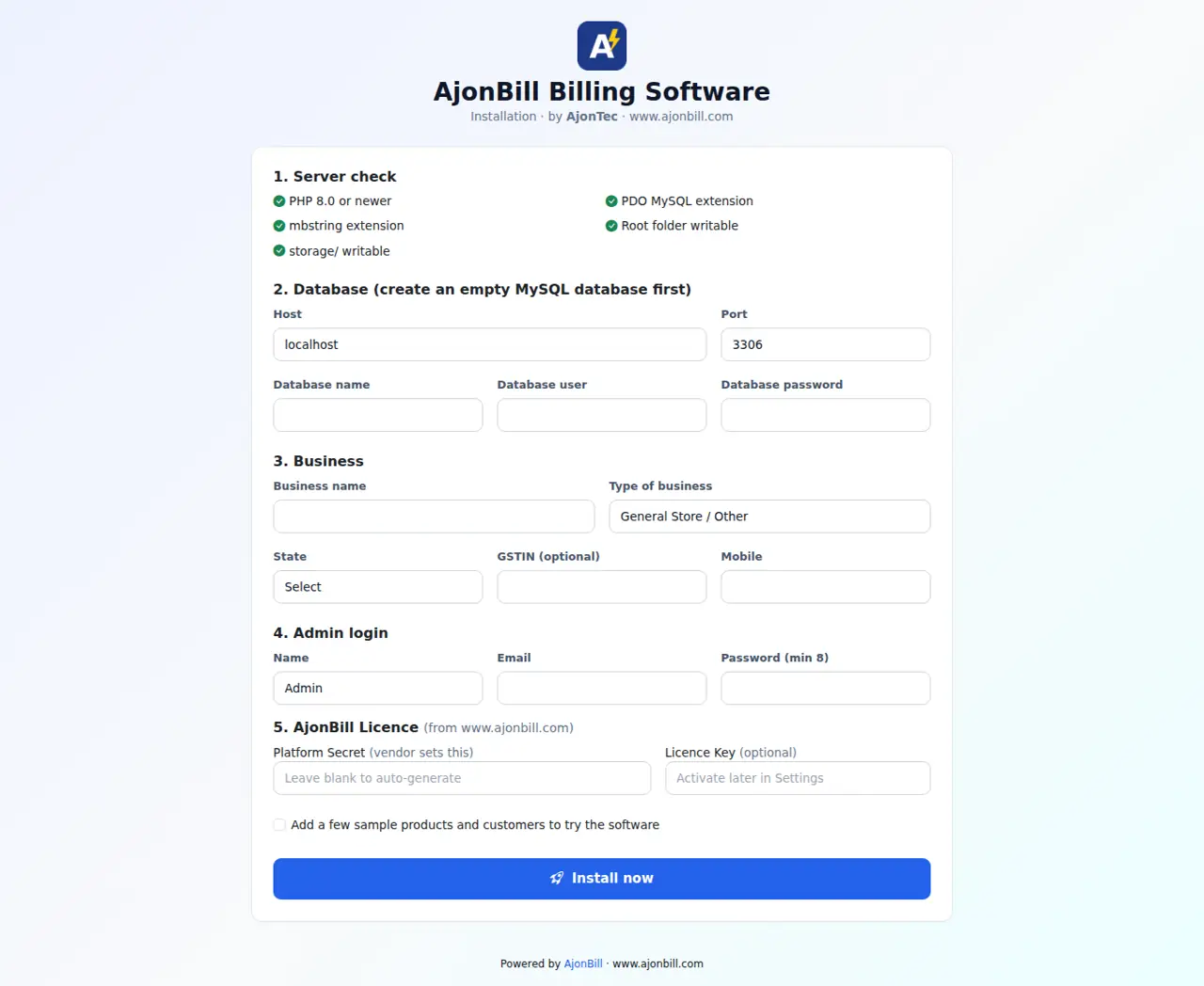
- Open your domain in the browser - the installer opens.
- Fill the database details, your business name, state, GSTIN (optional), the admin login and your licence code.
- Click Install. The software checks the licence, creates everything and opens the login page.
4. Windows offline app
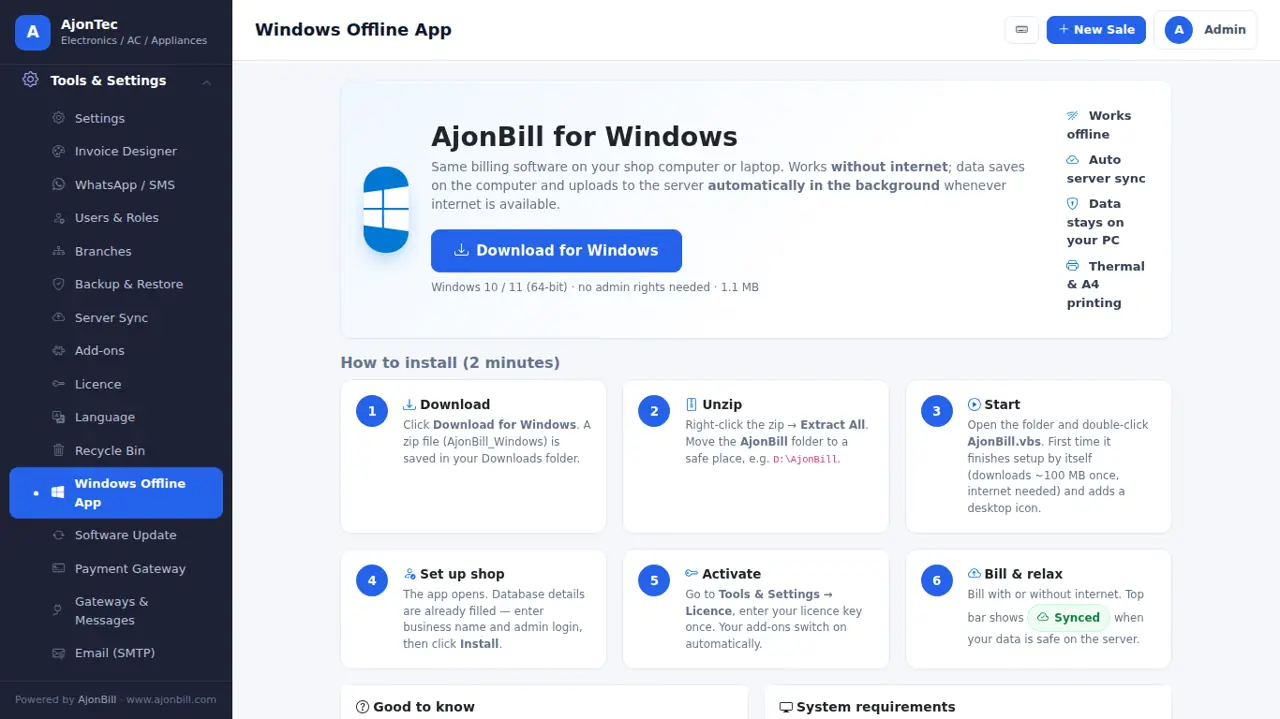
- My Account → My Software → download the Windows offline app → right-click → Extract All to Documents or Desktop.
- Double-click AjonBill.vbs. The first start downloads PHP and the local database by itself (internet needed once, about 100 MB) and makes a desktop icon.
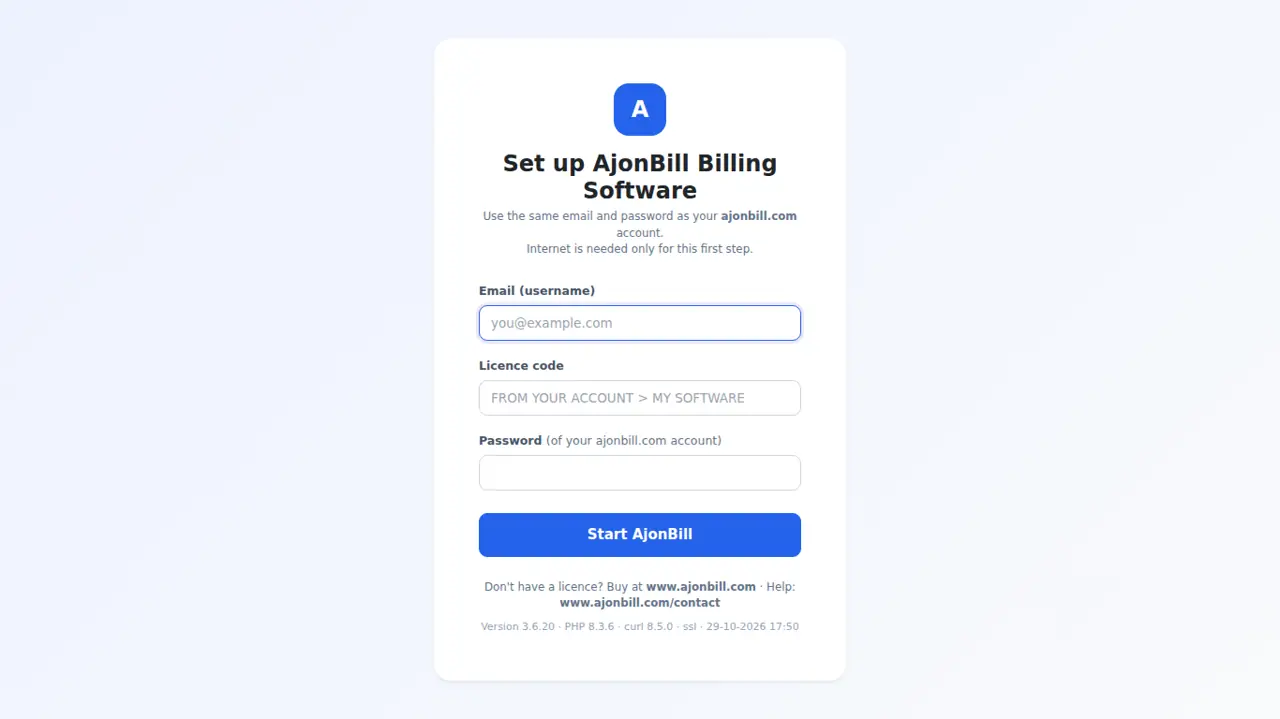
- Enter only your ajonbill.com email, licence code and password. No password yet, or forgotten? Click Email me a code - the password you typed becomes your account password.
- If you already use the website copy, every bill, product and customer comes to the computer and bill numbers continue.
- Works without internet for up to 90 days; data uploads to the server by itself when internet returns.
- Bring the website data again any time: Backup & Restore → Bring my data from website.
- New computer: My Account → My Software → Installations → Remove the old one, then set up the new one.
- Close fully with Stop-AjonBill.bat.
5. Login & dashboard
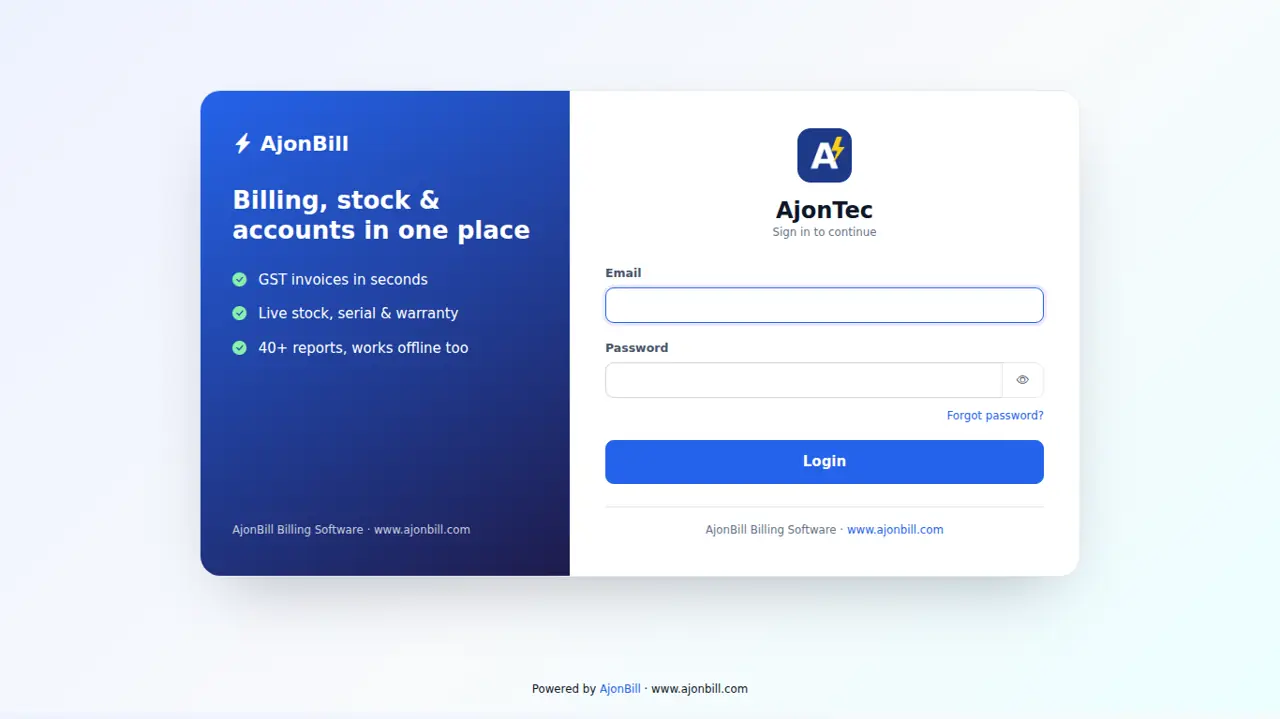
- Open your domain (or the desktop icon) → enter your email and password → Login. Turn on two-step login in Profile for extra safety.
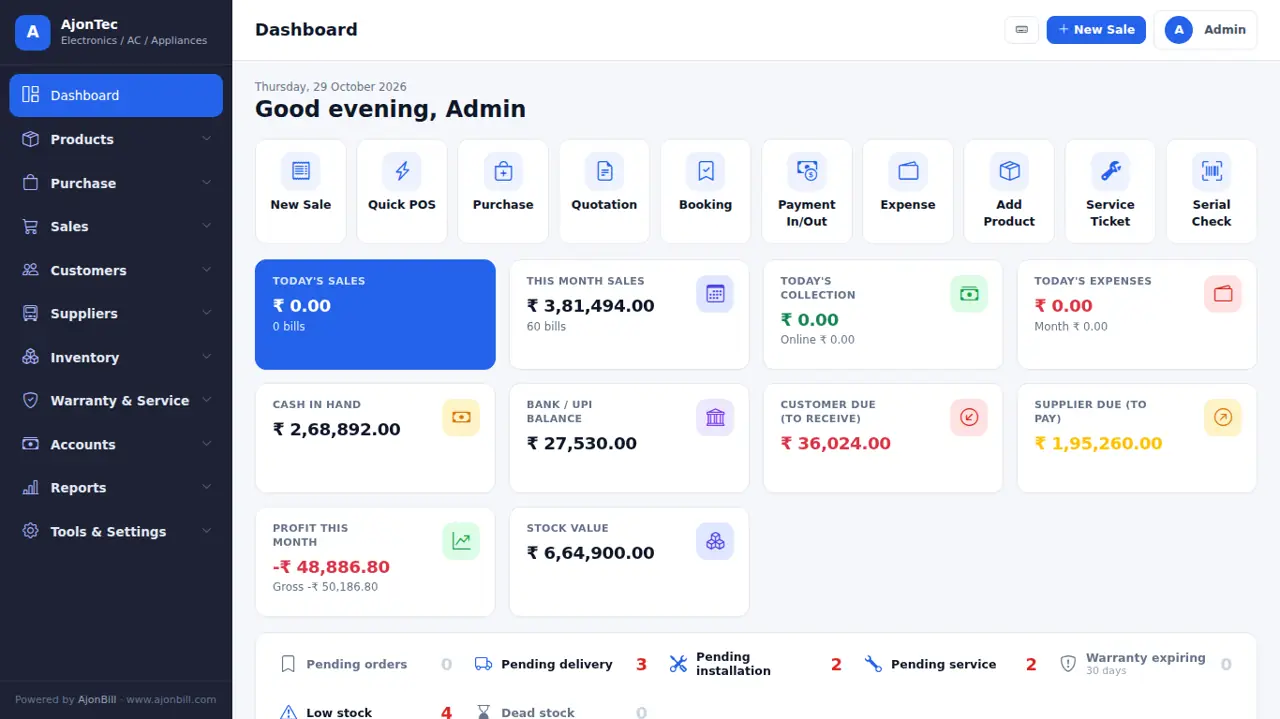
- The Dashboard shows today's sales, money received, customer dues, supplier dues, low stock and quick buttons.
6. Products & stock
6.1 Add a product
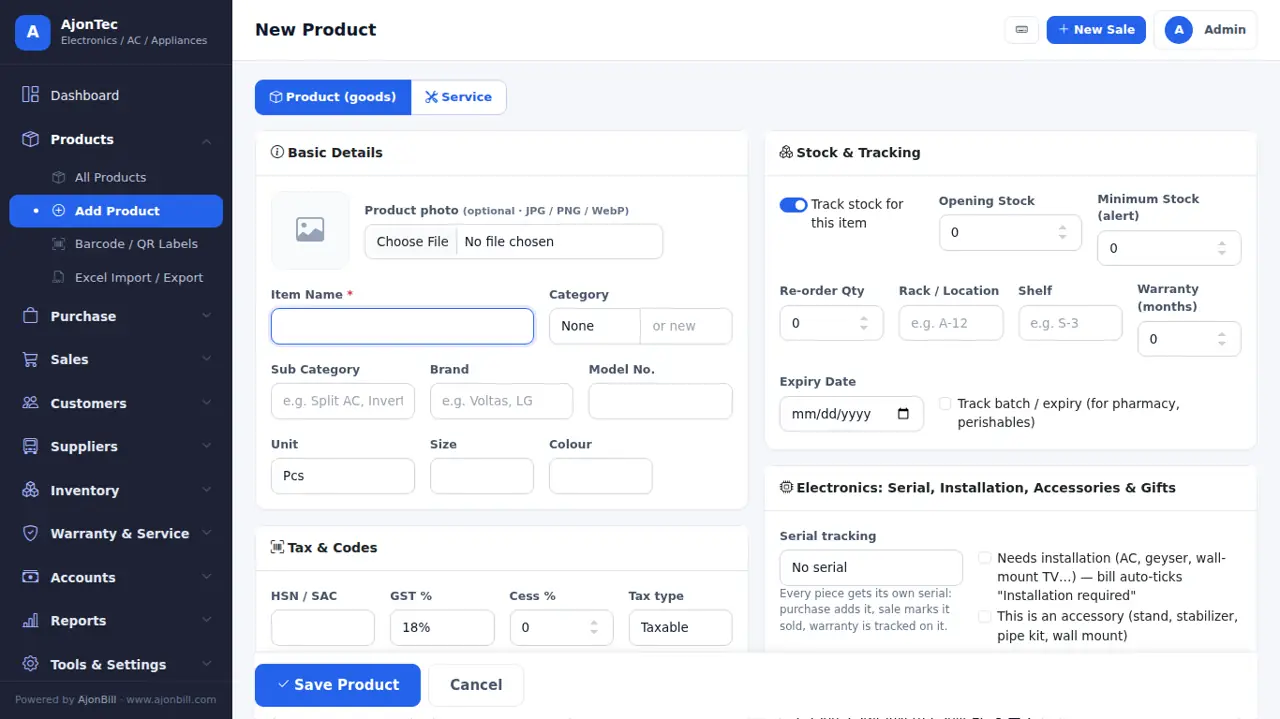
- Products → Add Product.
- Item name, category (pick or type a new one), unit, HSN and GST %.
- Prices: purchase, sale (retail), wholesale, dealer, offer and MRP. Tick Rates include GST if your prices already have GST.
- Stock: opening stock, minimum stock (low-stock alert), rack / shelf. Turn off Track stock for services or dishes.
- Optional: photo, barcode / SKU, brand & model and the business fields (see chapter 25).
- Save.
6.2 Change stock
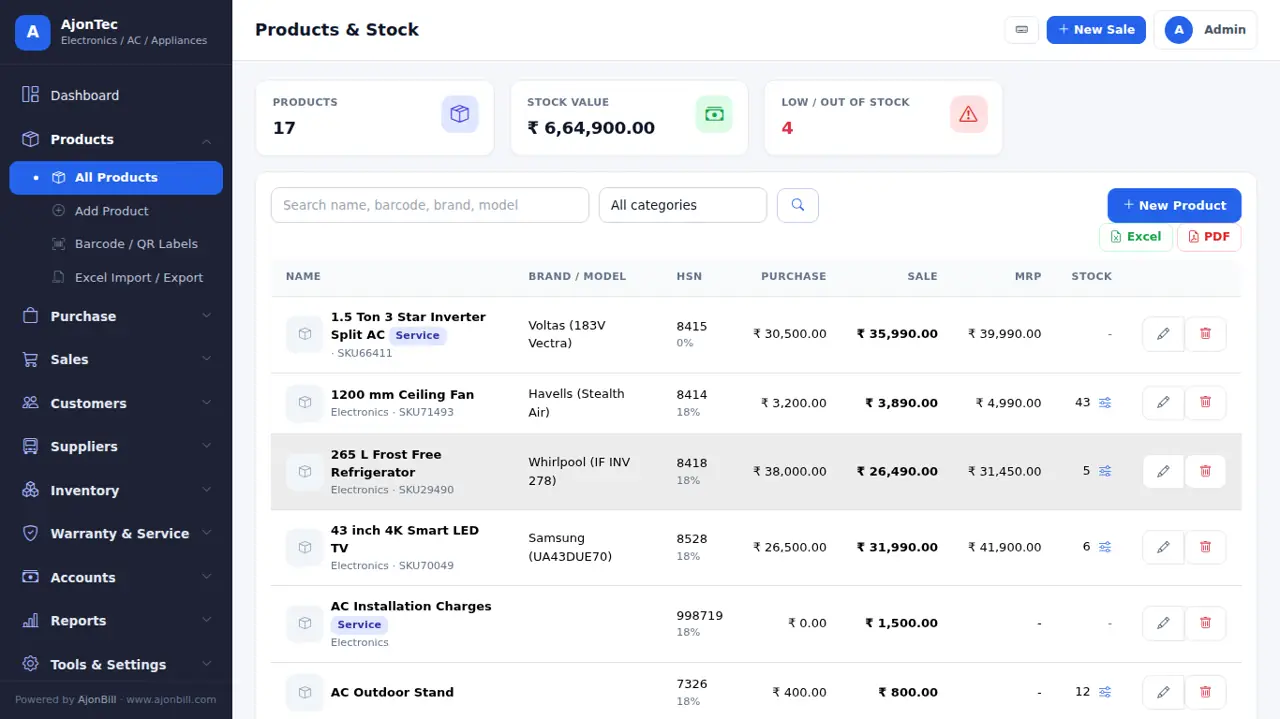
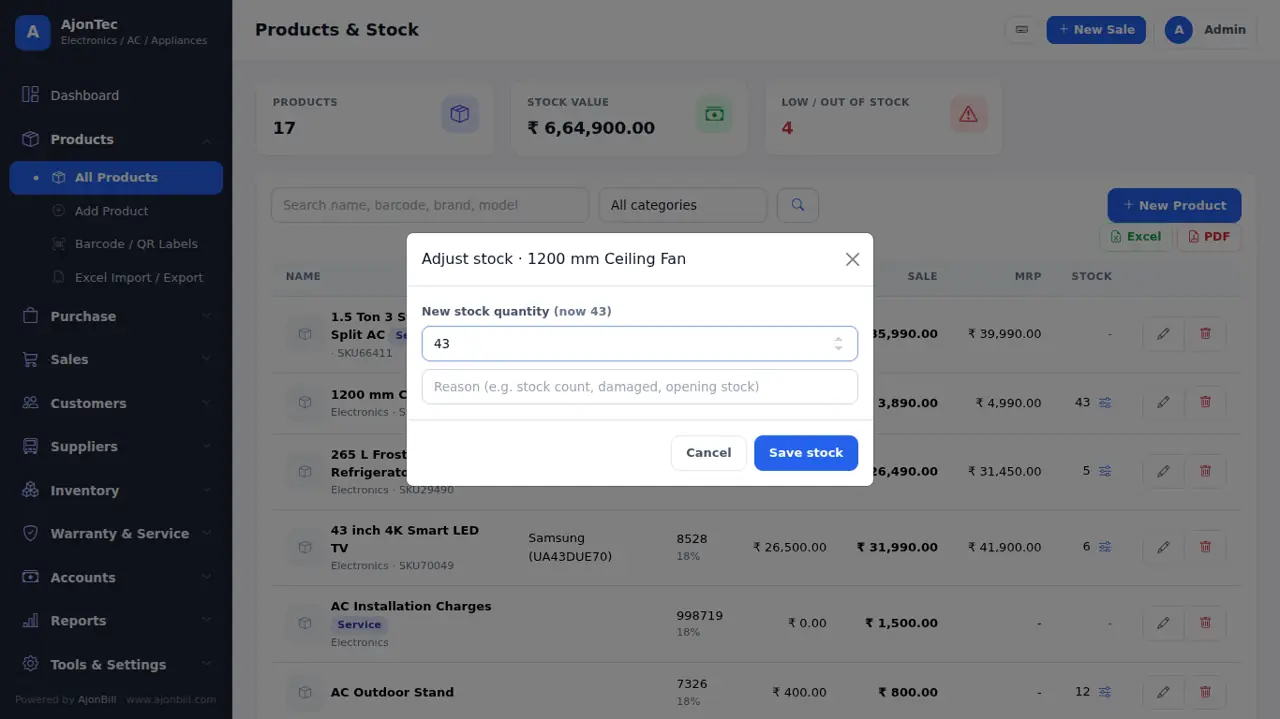
Click the slider icon next to the stock → type the new quantity and a reason → Save stock. Every change is kept in the stock history.
6.3 Barcode labels, Excel import and live stock
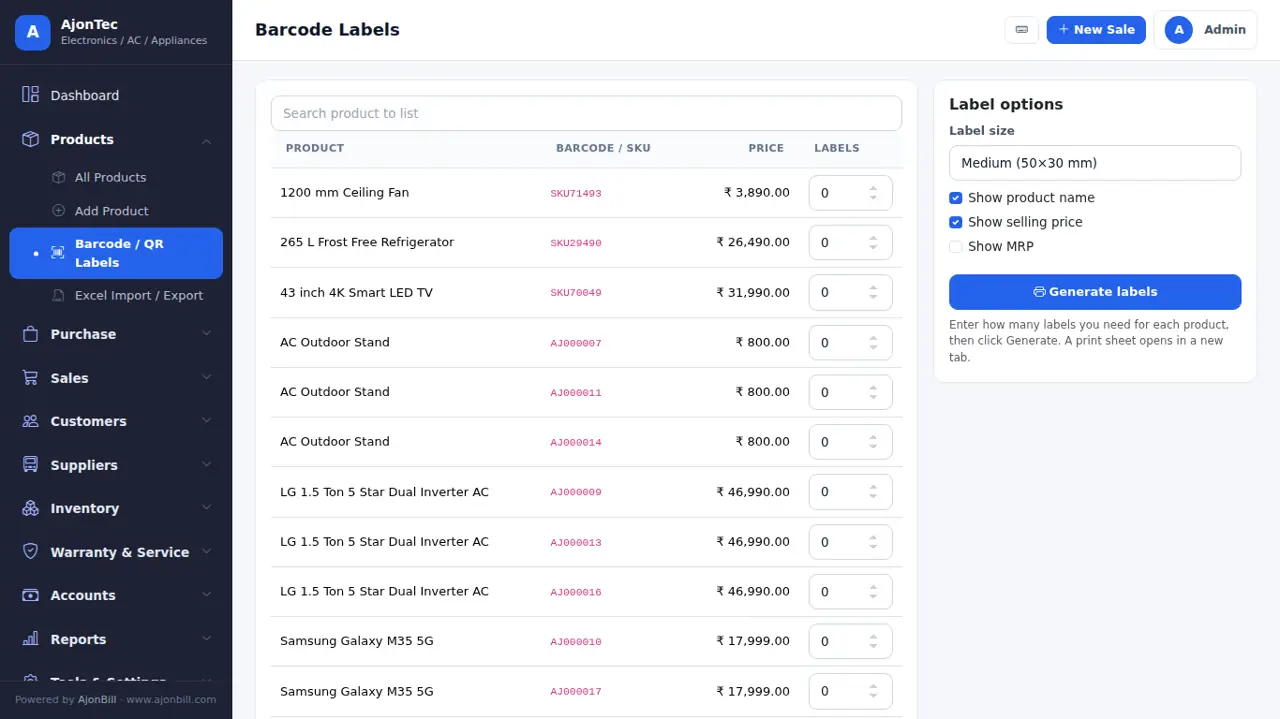
- Products → Barcode / QR Labels: choose items and copies → print on A4 sheets or a label printer.
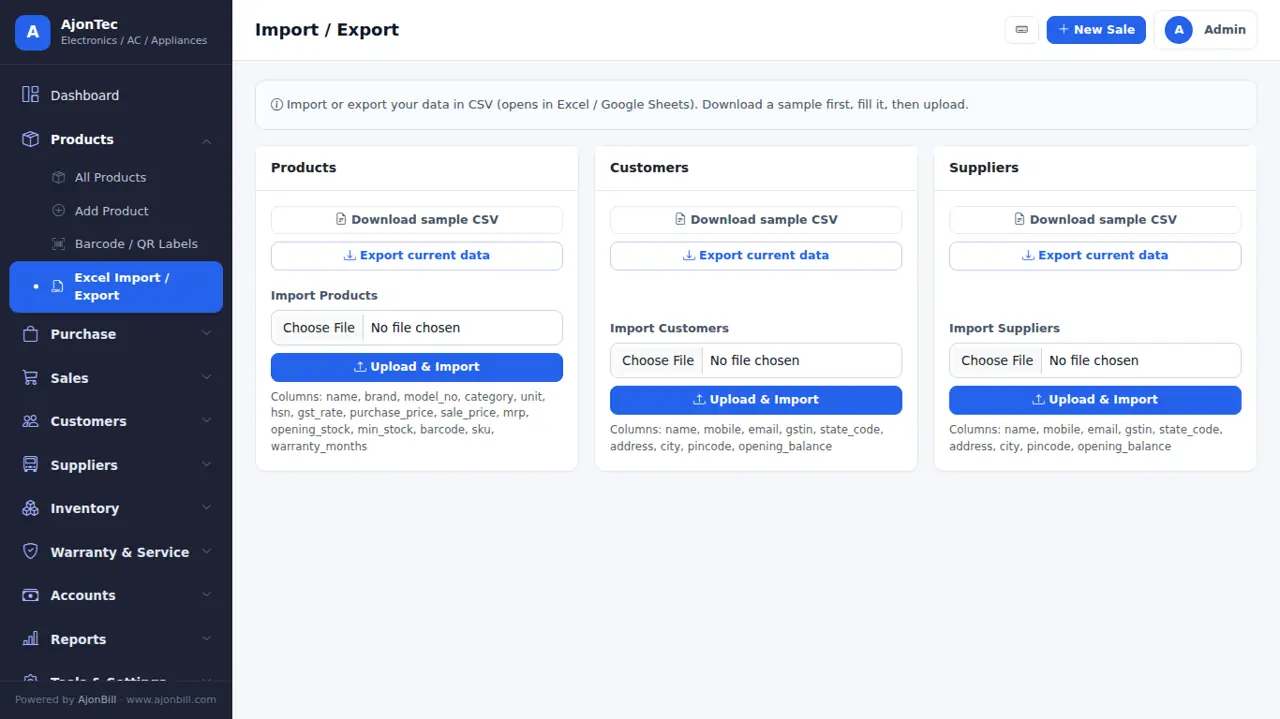
- Products → Excel Import / Export: download the sample file, fill it, upload. Existing items are updated, new ones are added.
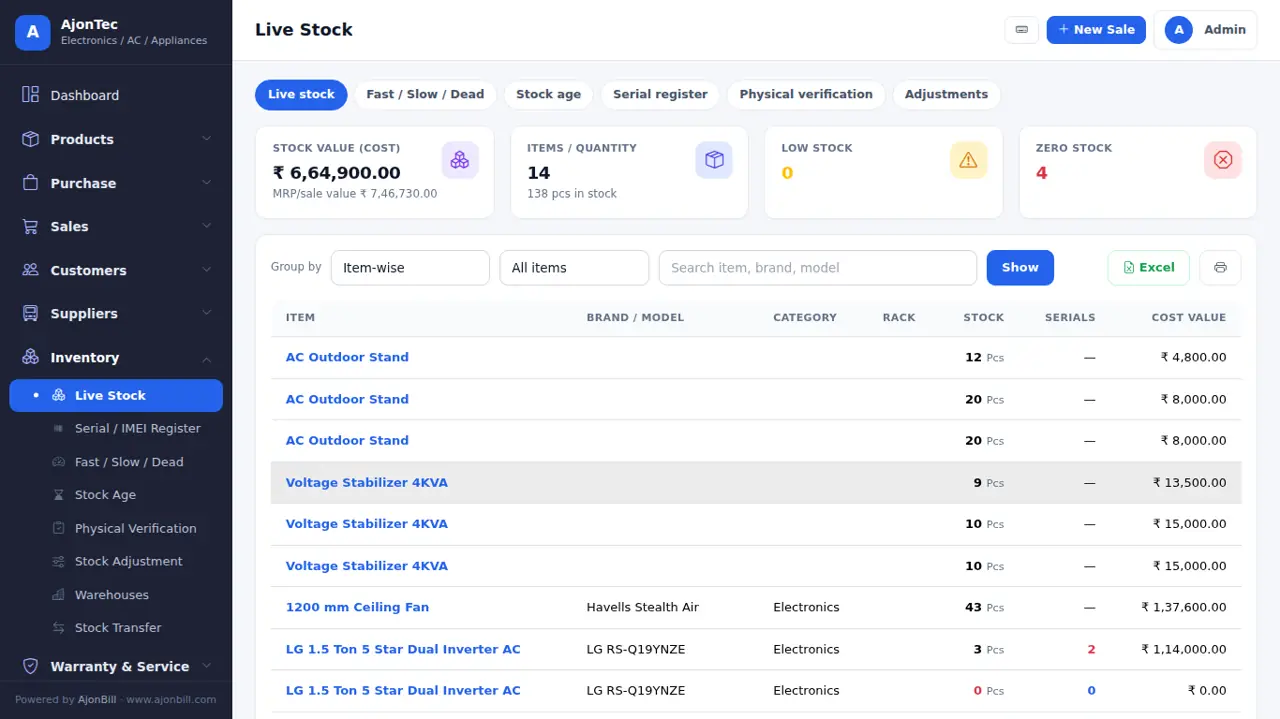
- Inventory → Live Stock: stock and value branch-wise, low and dead stock.
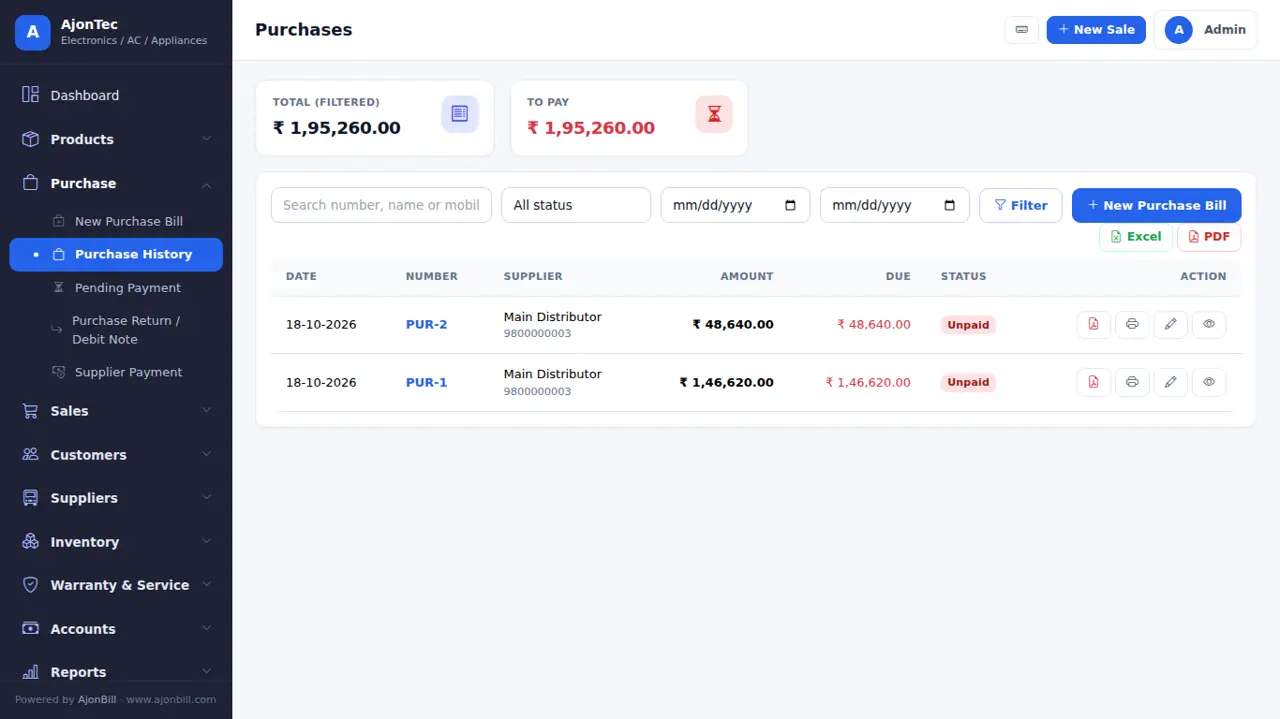
7. Purchase (stock in)
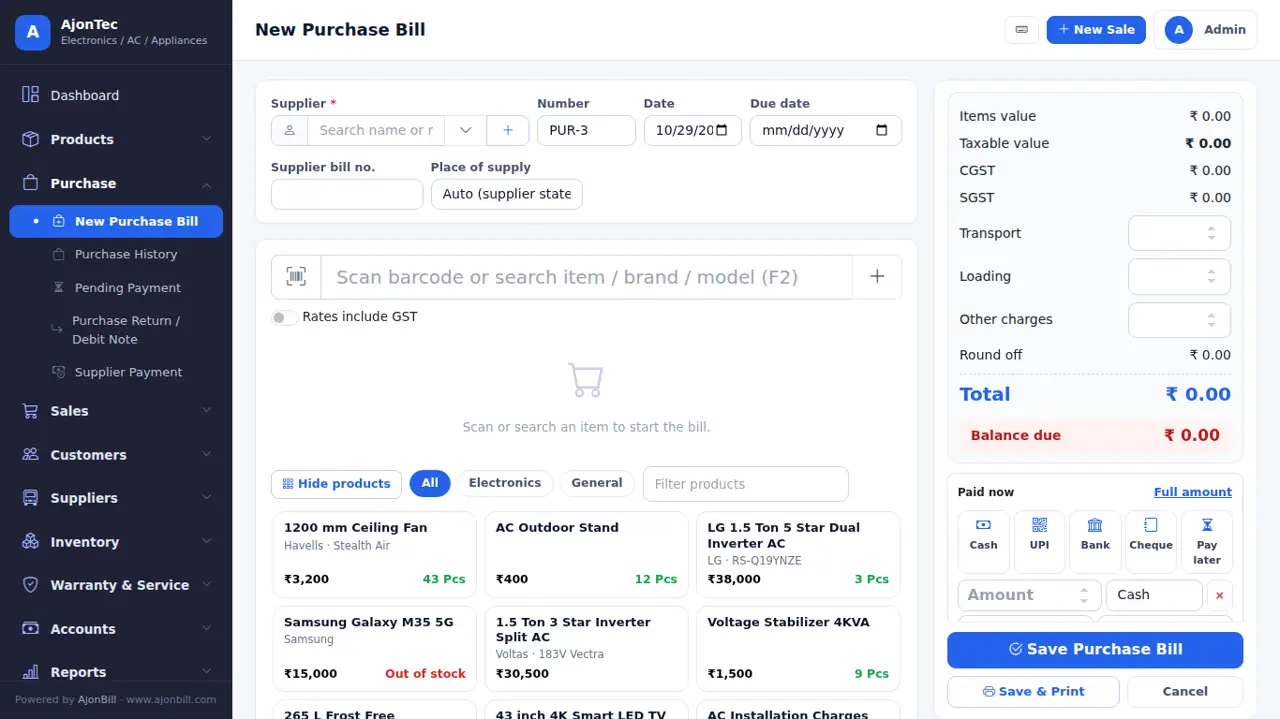
- Purchase → New Purchase.
- Pick the supplier (or + to add), the supplier bill number and date.
- Add items: search or scan, quantity, purchase rate, GST. Serial / IMEI or batch & expiry where needed.
- Add transport / loading charges if any, then the amount paid now (cash, UPI, bank...).
- Save - stock goes up and the supplier balance updates.
8. Sales invoice
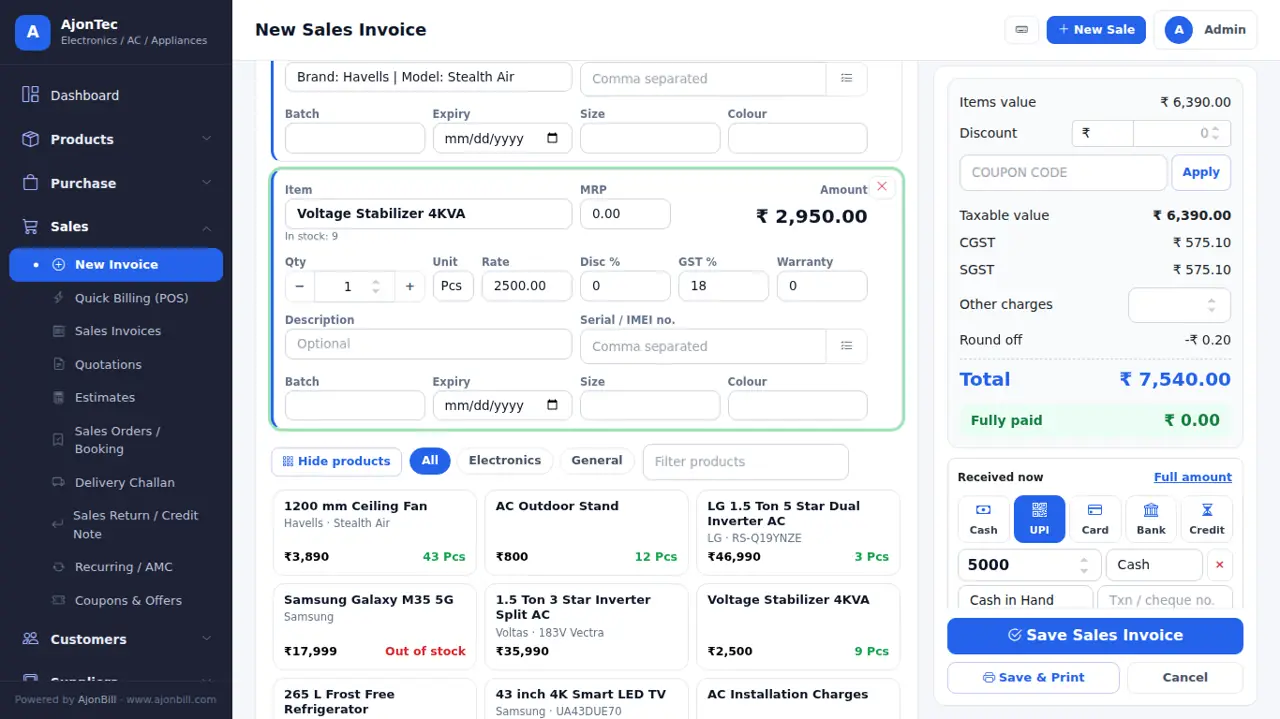
- Sales → New Invoice (or the blue New Sale button).
- Customer: Walk-in Customer is ready; click the box or ▾ to pick, or + to add a new customer. Old dues show under the name.
- Bill format, salesman, place of supply, GST / Non-GST and sale type (Cash / Credit; EMI, Finance and Exchange with the add-on).
- Add items: scan, type in the search (F2) or tap a product tile. Each item has 3 lines: name & amount · qty − / +, unit, rate, discount %, GST %, warranty · description and serial / IMEI.
- An item with no stock shows a warning and is not added (unless Allow negative stock is on in Settings).
- Discount: ₹ amount (exactly that much comes off the total) or %; coupon codes work too.
- Received now: tap Cash / UPI / Card / Bank; for a split payment type the first amount, then tap the next mode - the balance goes there. Balance due is shown under the total.
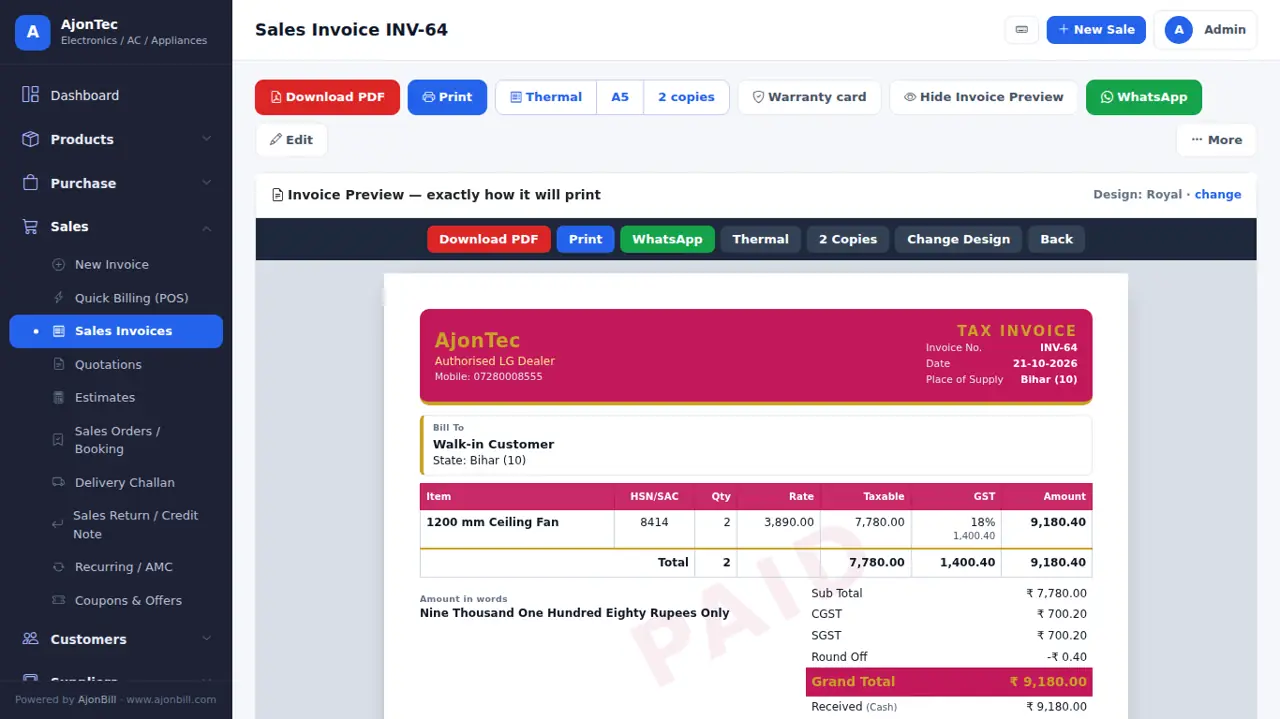
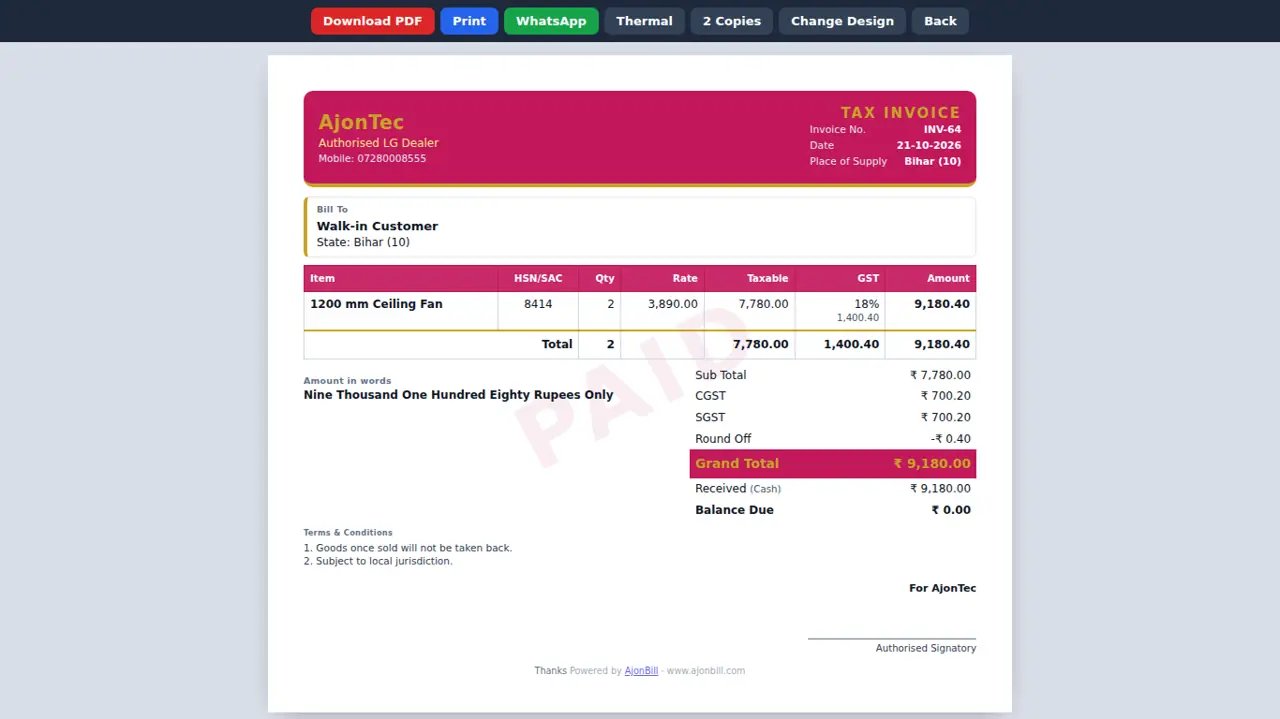
- Save or Save & Print. The bill opens in your invoice design - print, PDF, WhatsApp or thermal.
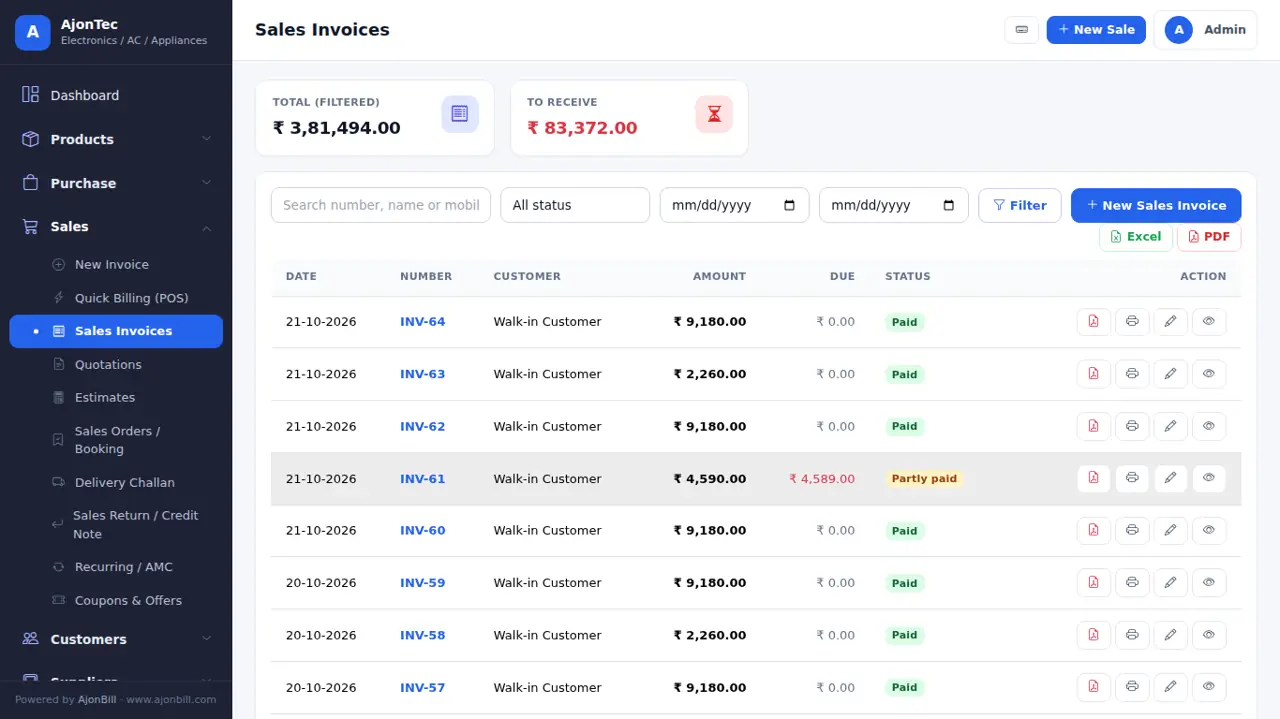
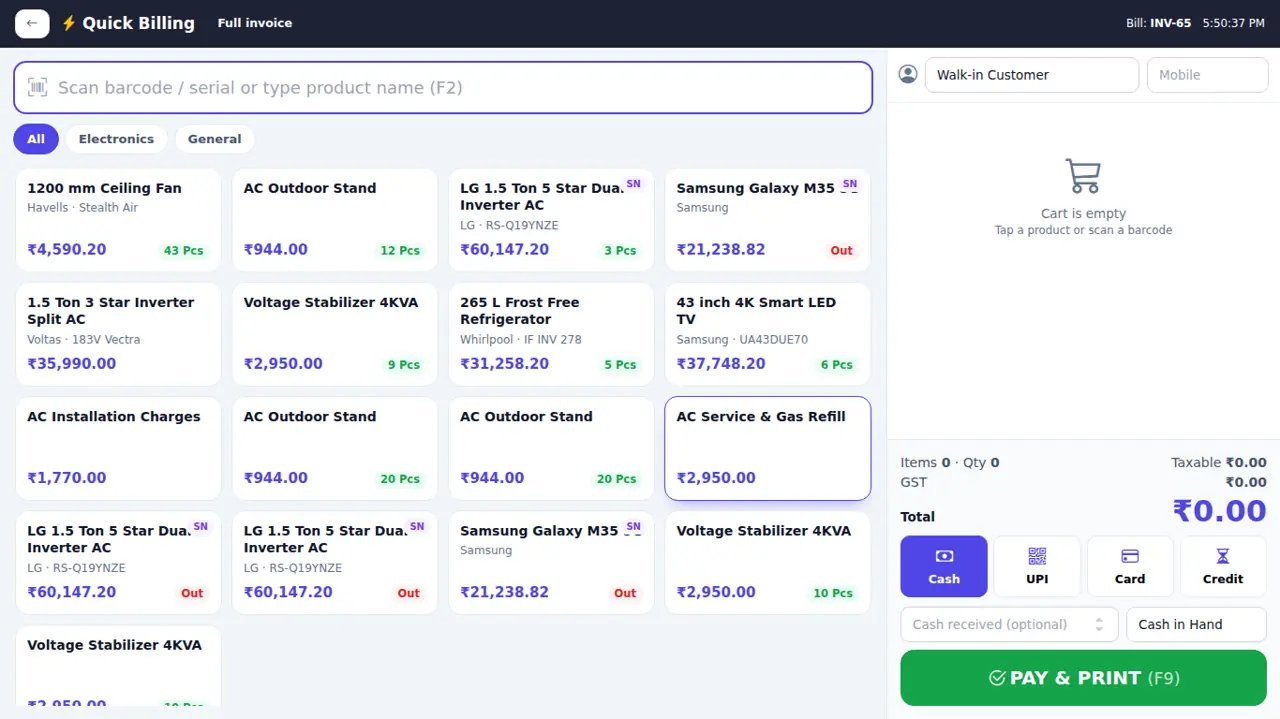
9. Quick Billing (POS)
- Sales → Quick Billing (POS).
- Tap tiles or scan barcodes; change qty with − / +.
- Choose the payment mode, type the amount received - the change to return is shown.
- Pay & print - prints on the thermal printer.
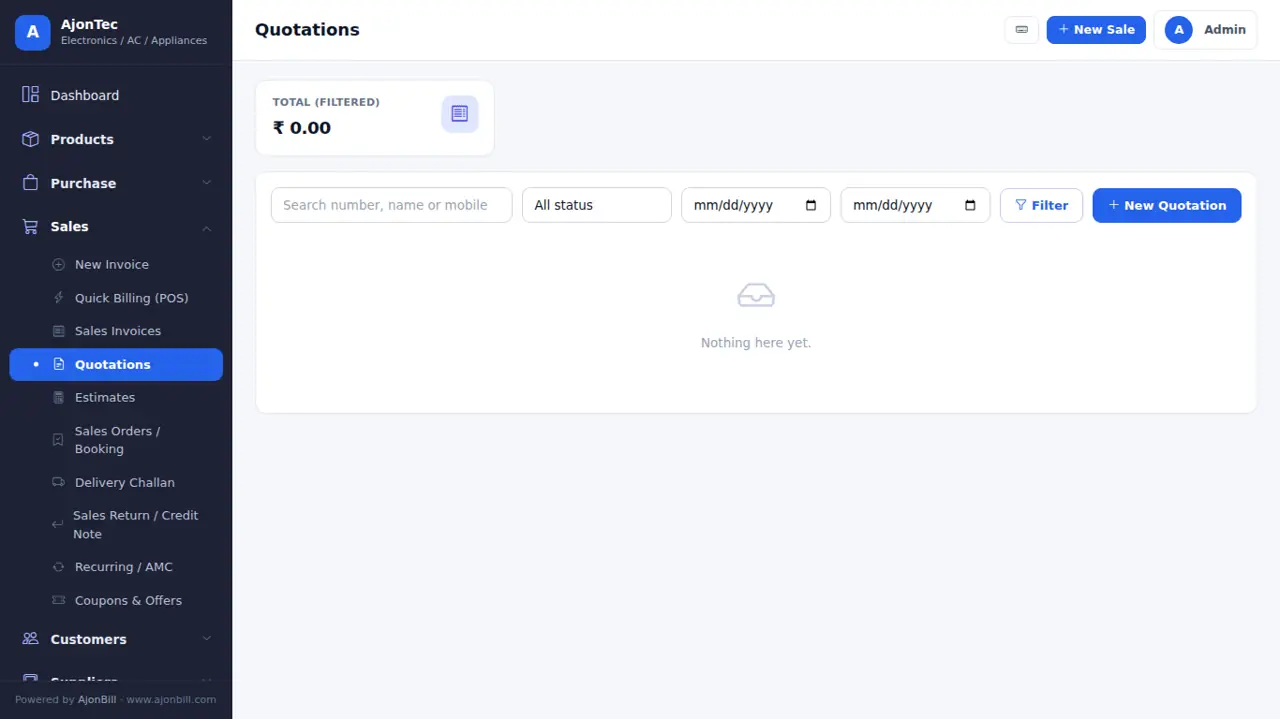
10. Quotation, estimate, delivery challan and sales order
- Quotations / Estimates: same screen as the invoice; stock does not change. Convert to an invoice in one click.
- Delivery Challan: goods leave without a tax invoice; convert to an invoice later.
- Sales Orders / Booking (add-on): take an advance now, deliver and bill later.
11. Returns (credit / debit notes)
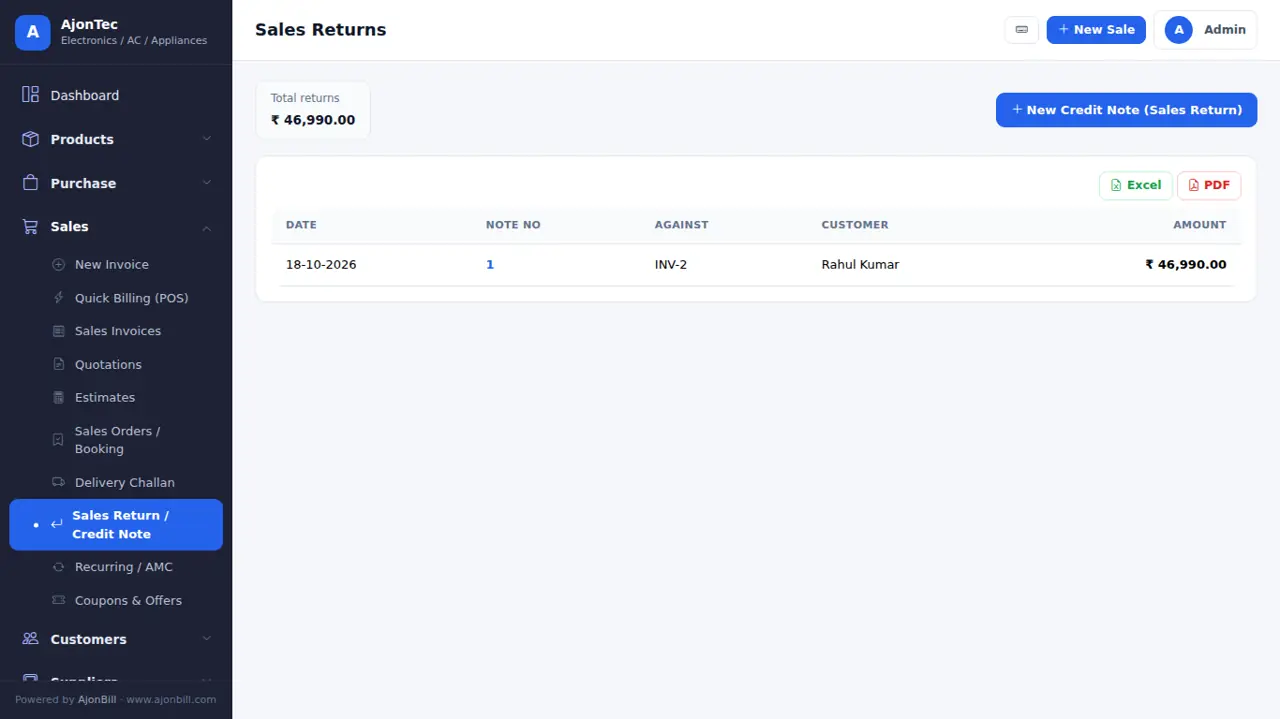
- Sales → Sales Return / Credit Note → pick the invoice → choose items and qty → refund or keep as credit.
- Stock comes back and the customer balance updates. Purchase returns work the same from Purchase.
12. Customers & suppliers
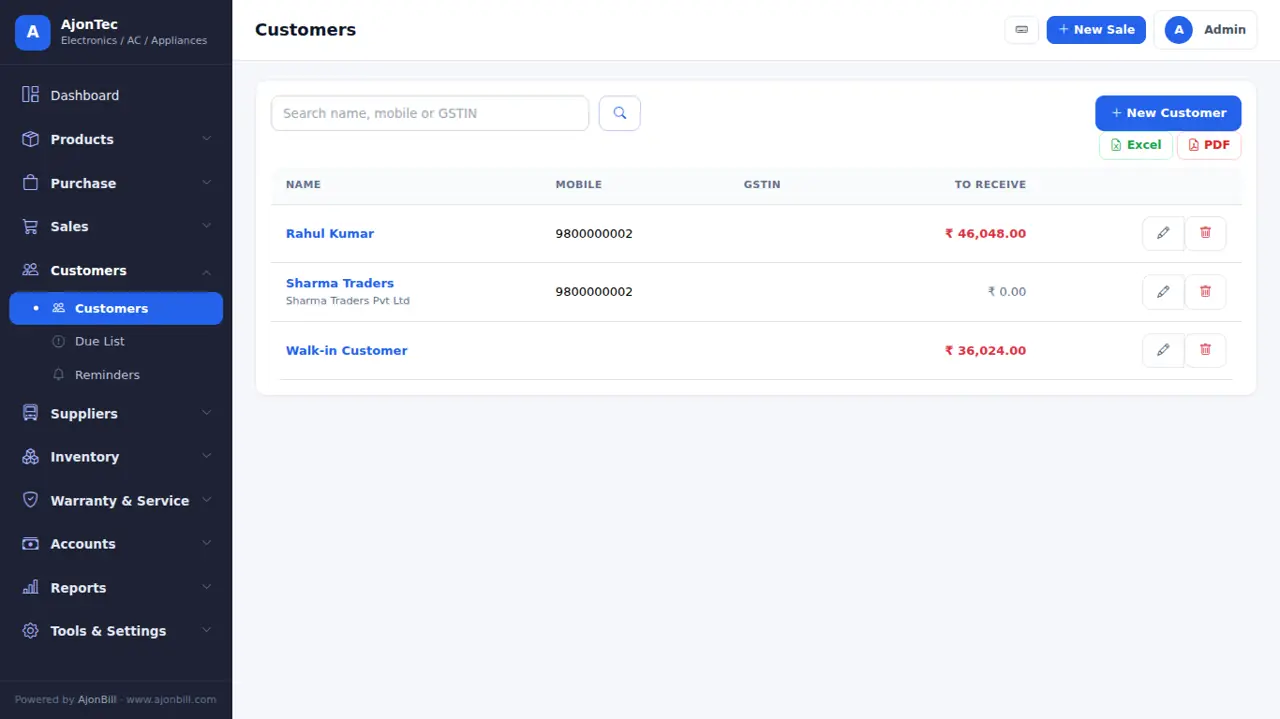
- Customers → All Customers → Add: name, mobile, GSTIN, state, address, opening balance and credit limit.
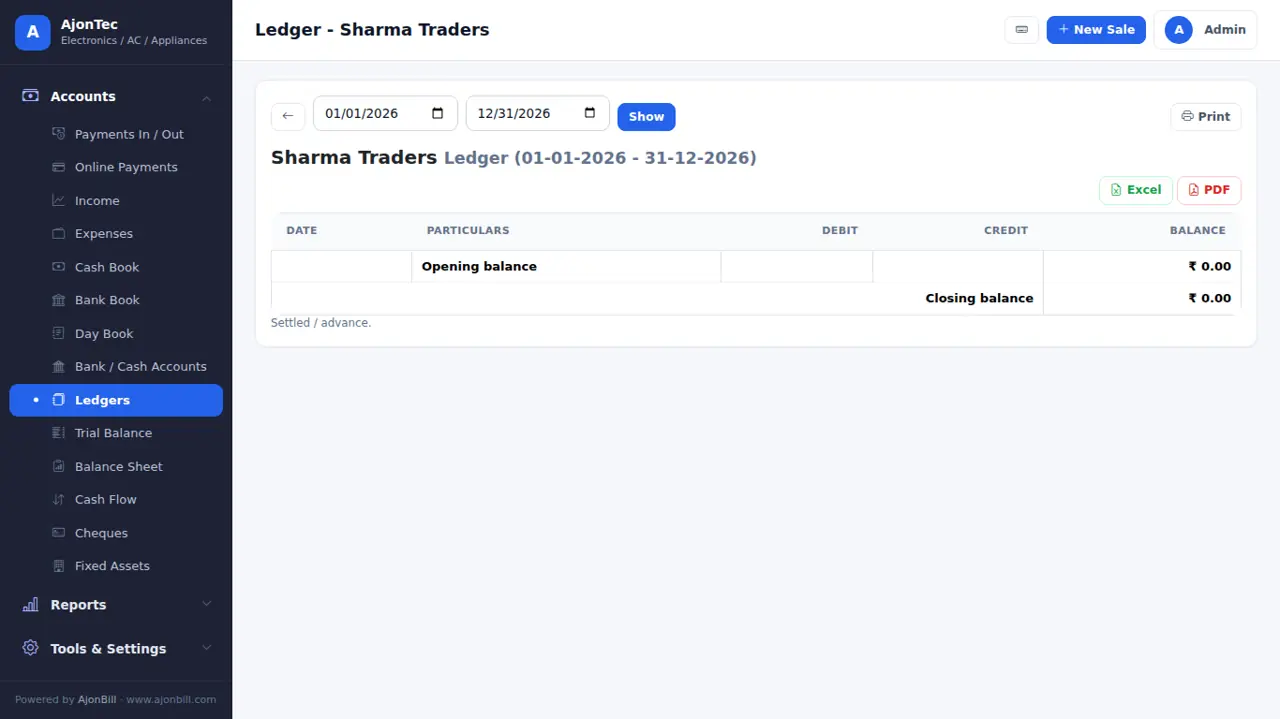
- Click a name for its ledger: every bill, return and payment with the running balance.
13. Payments, dues & reminders
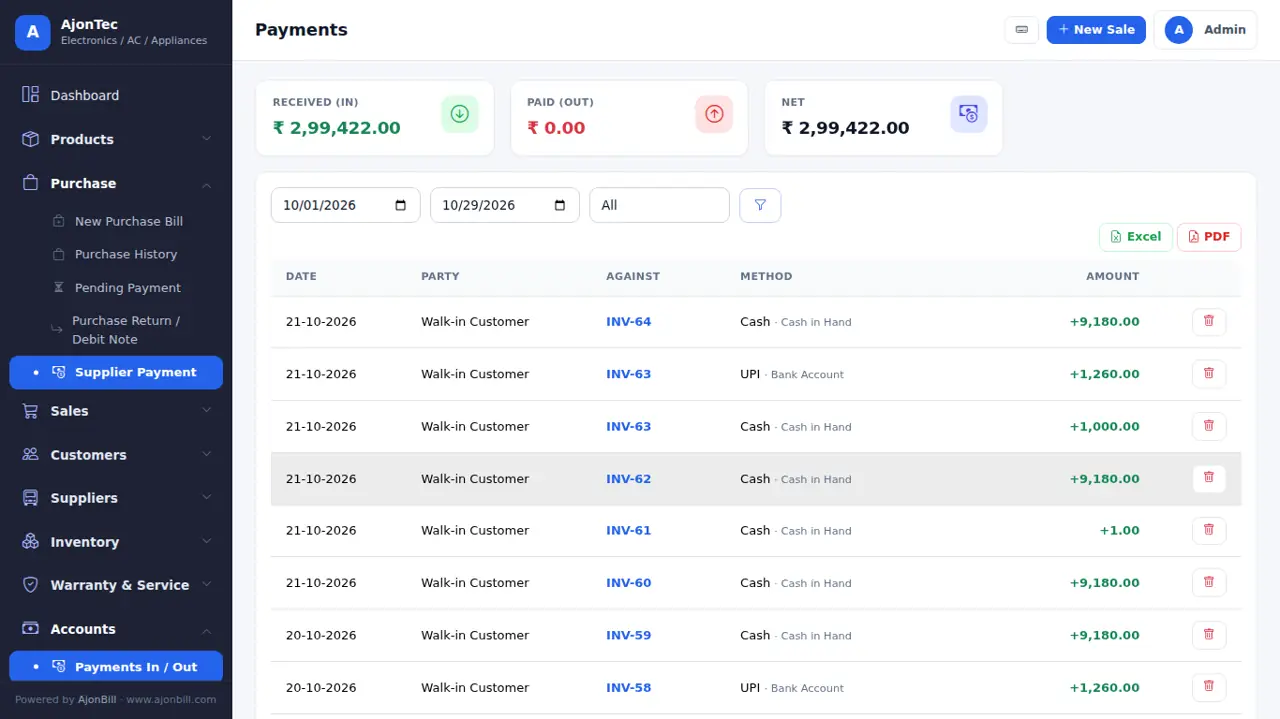
- Accounts → Payments: receive money against bills or on account (advance / old dues).
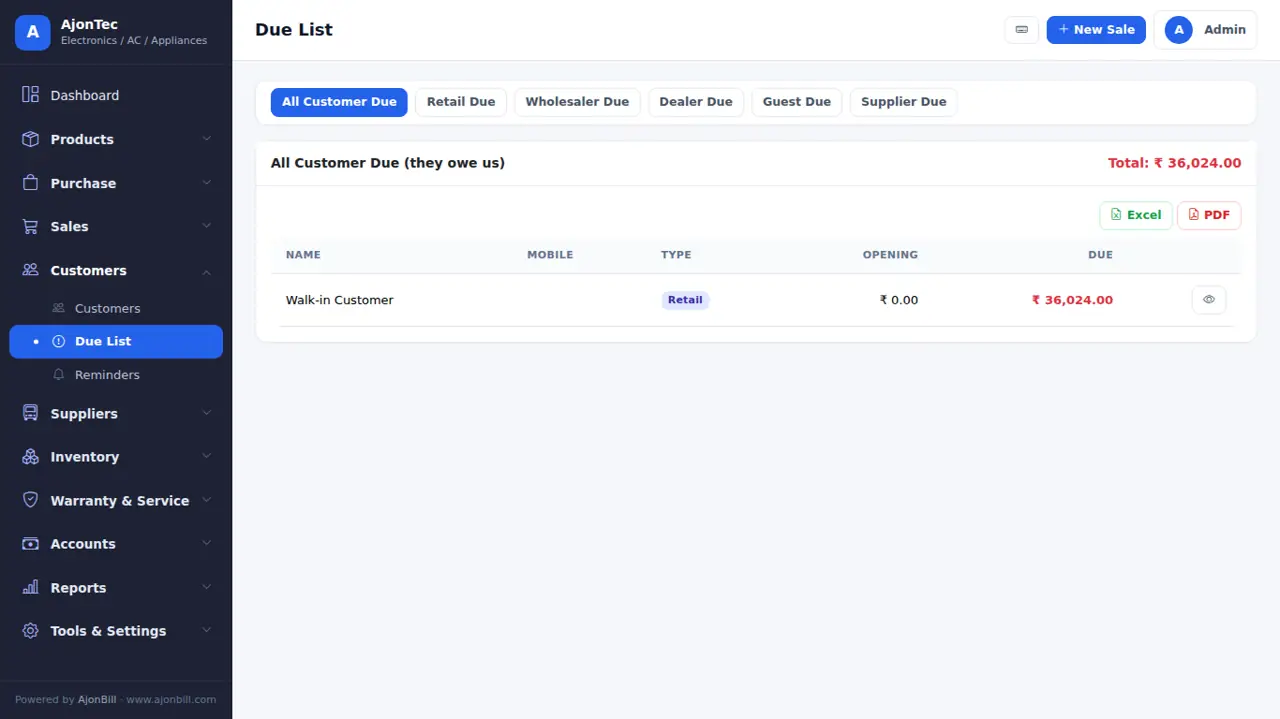
- Due list: who owes you and whom you owe - exactly the ledger balance. Send reminders (SMS / WhatsApp add-on).
14. Expenses & accounts
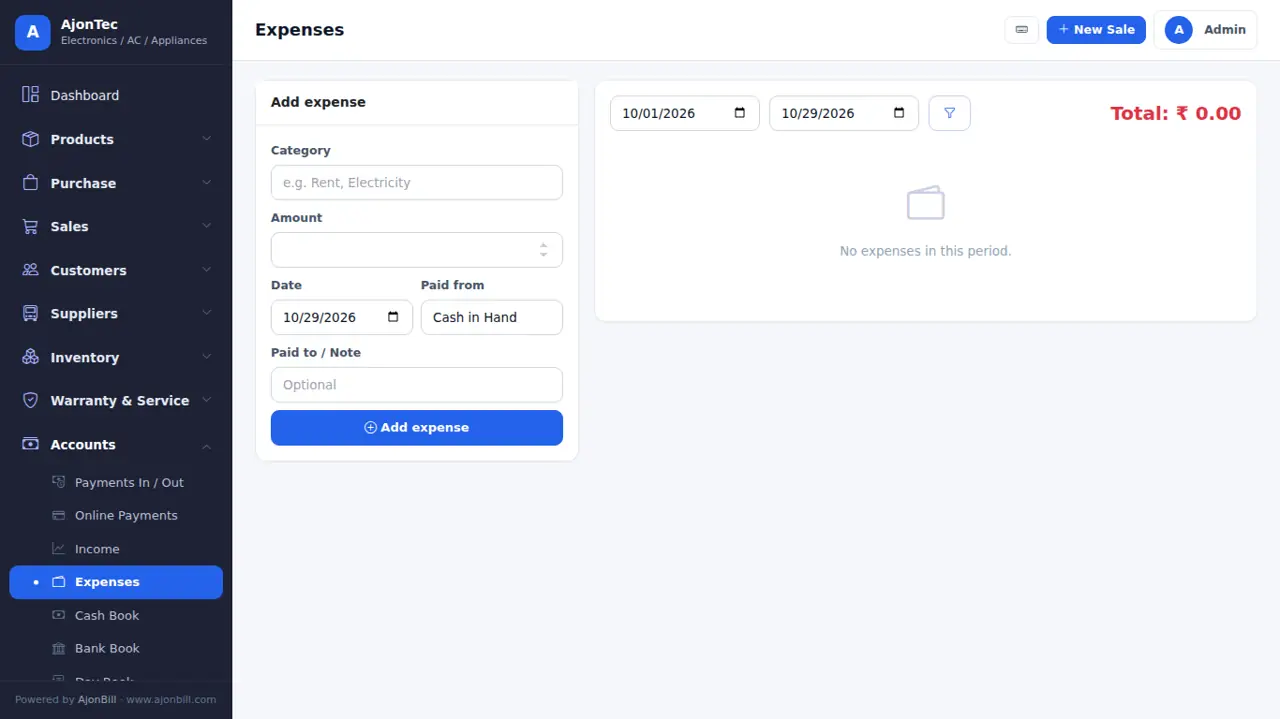
- Expenses: rent, salary, electricity... by category, paid from cash or bank.
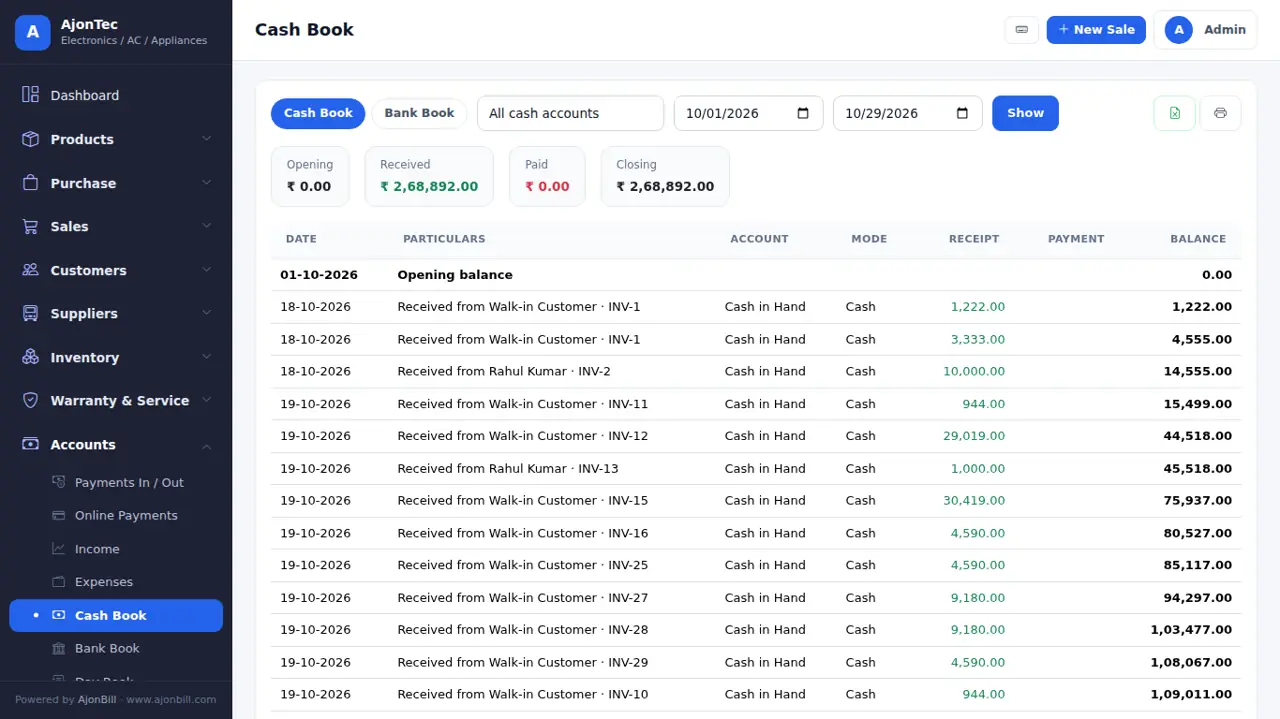
- Cash / Bank book, Day book, cheques, fixed assets, trial balance, P&L and balance sheet.
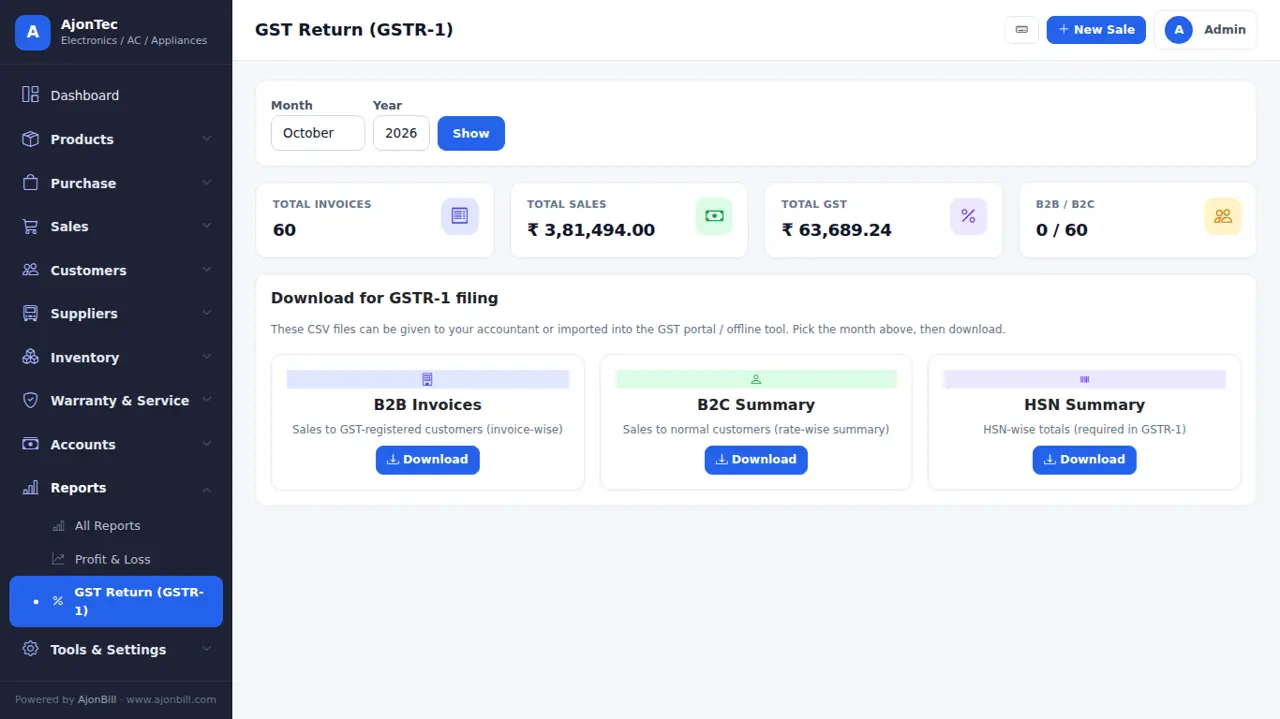
15. Reports & GST returns
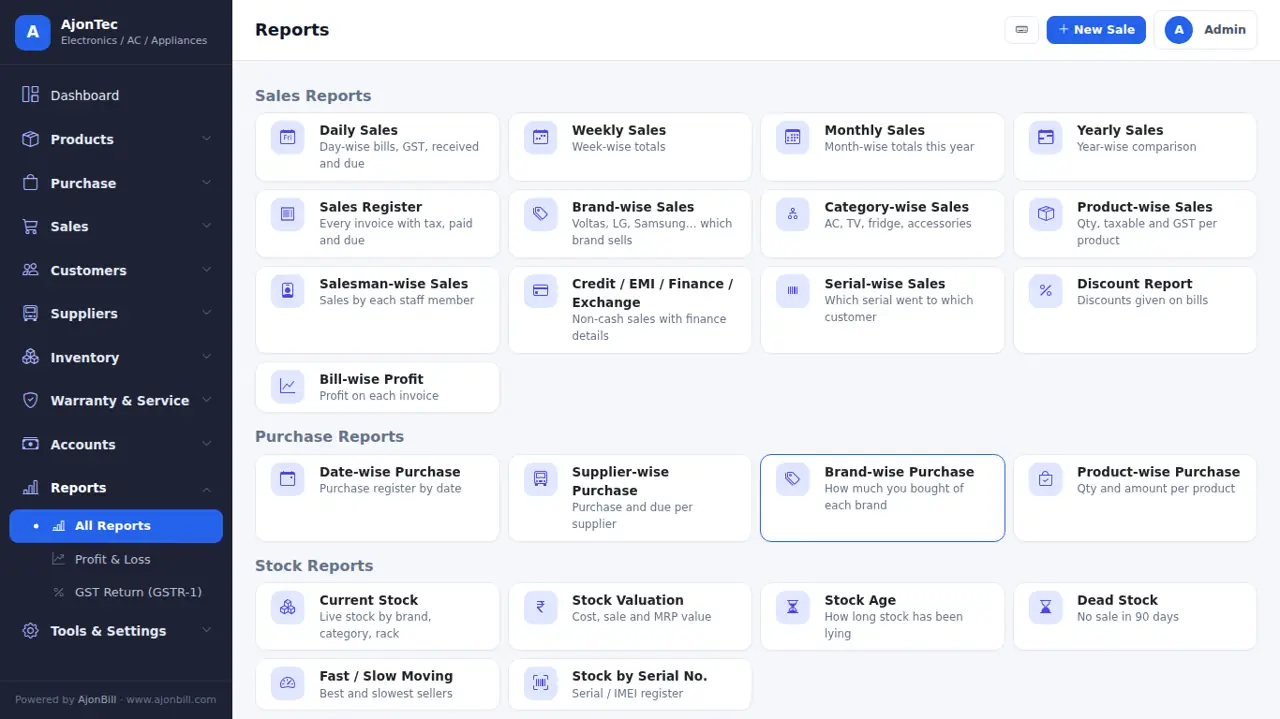
- Reports: sales, purchase, item-wise, party-wise, profit, stock, expiry, day book and more (40+), each with date filter, Excel and PDF.
- GST Return: GSTR-1 (B2B, B2C, HSN) and GSTR-3B figures for the month - download JSON / Excel for your CA or the GST portal.
16. Invoice designer
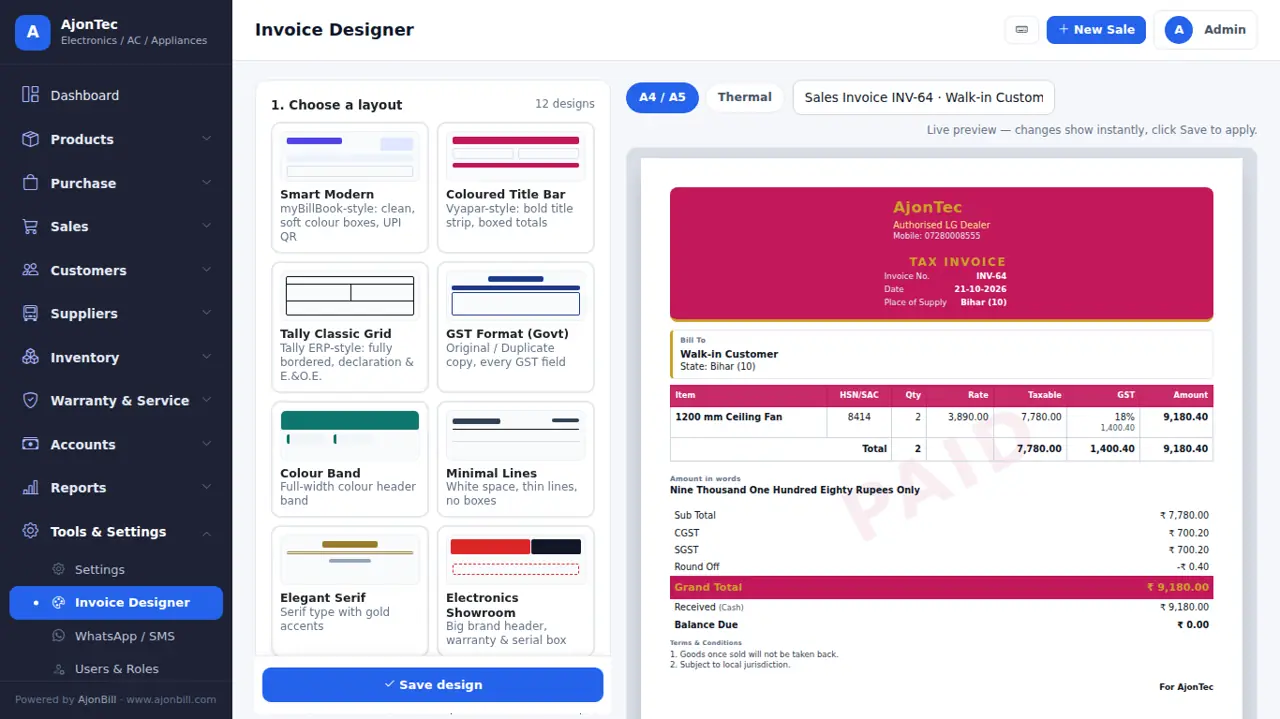
- Tools & Settings → Invoice Designer.
- Choose one of 12 layouts, colour, font, paper (A4 / A5 / thermal), copies and watermark.
- Switch fields on / off (logo, HSN, discount column, bank, UPI QR, signature...) - empty columns disappear by themselves. The live preview shows a sample bill even before your first sale.
- Save design.
17. Settings
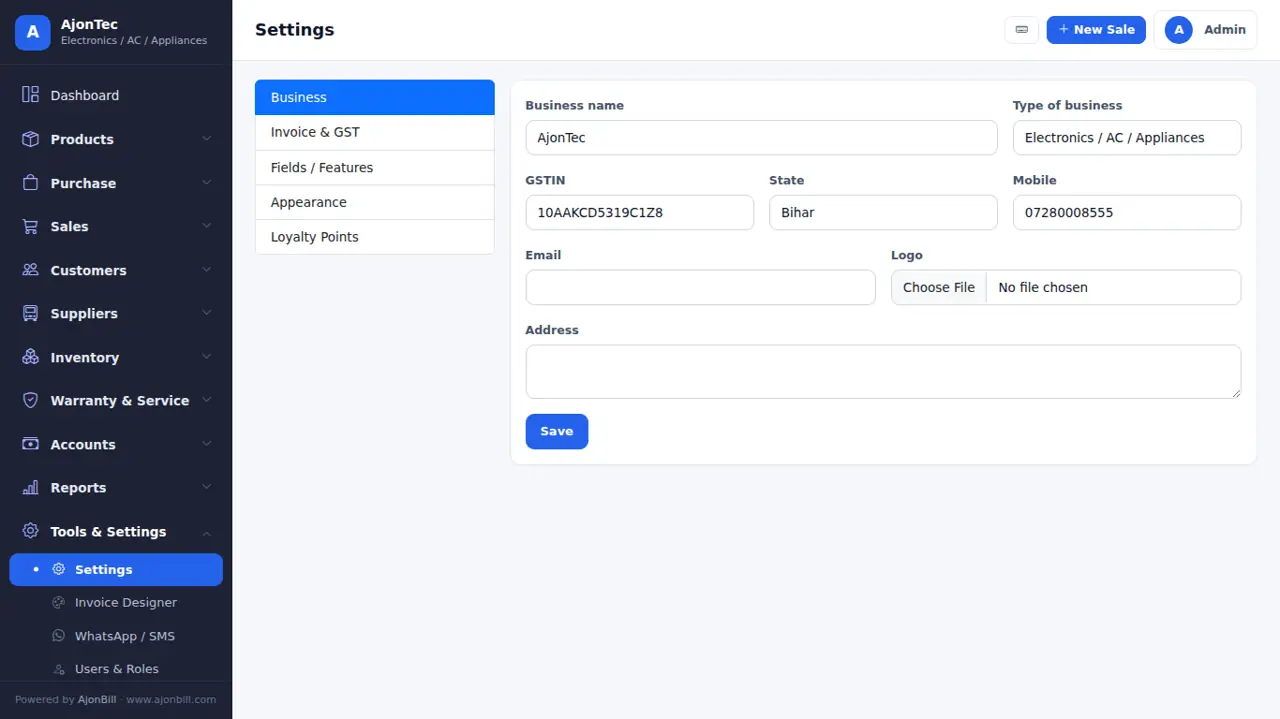
- Business name, address, GSTIN, logo, bank and UPI details, bill numbers (prefix and next number), terms, features for your business, negative stock, round-off and language.
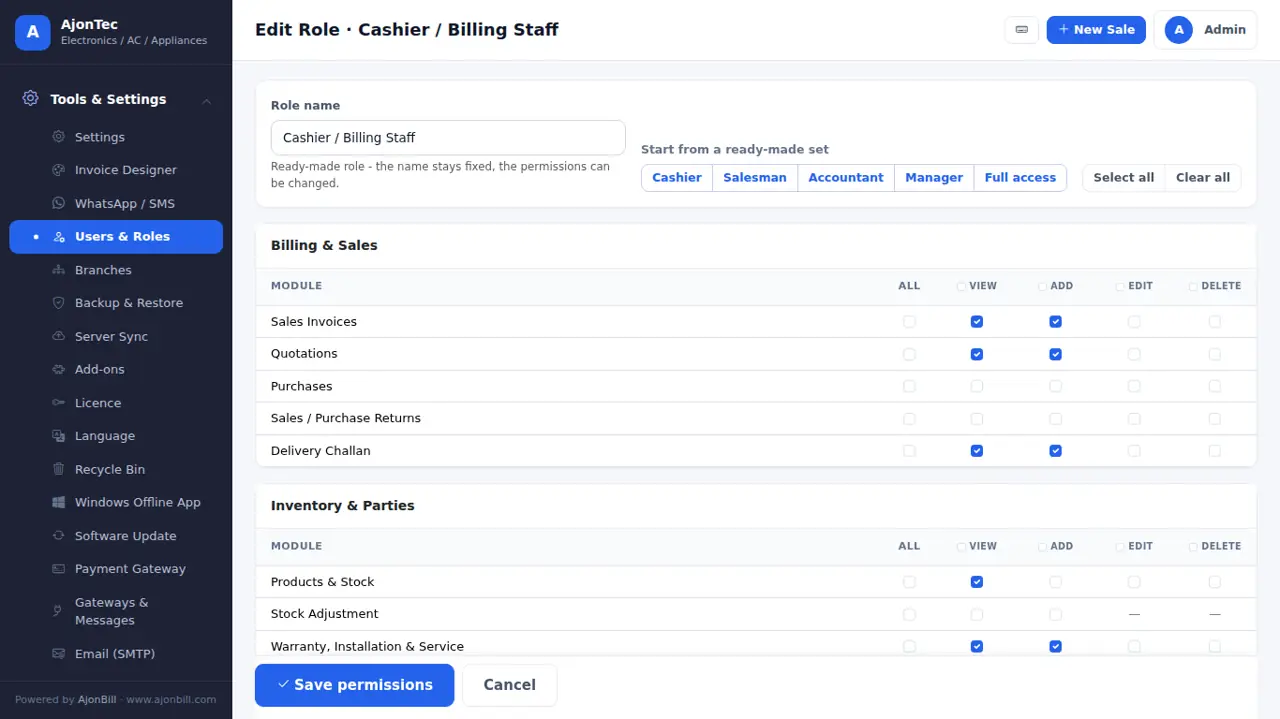
18. Users & roles
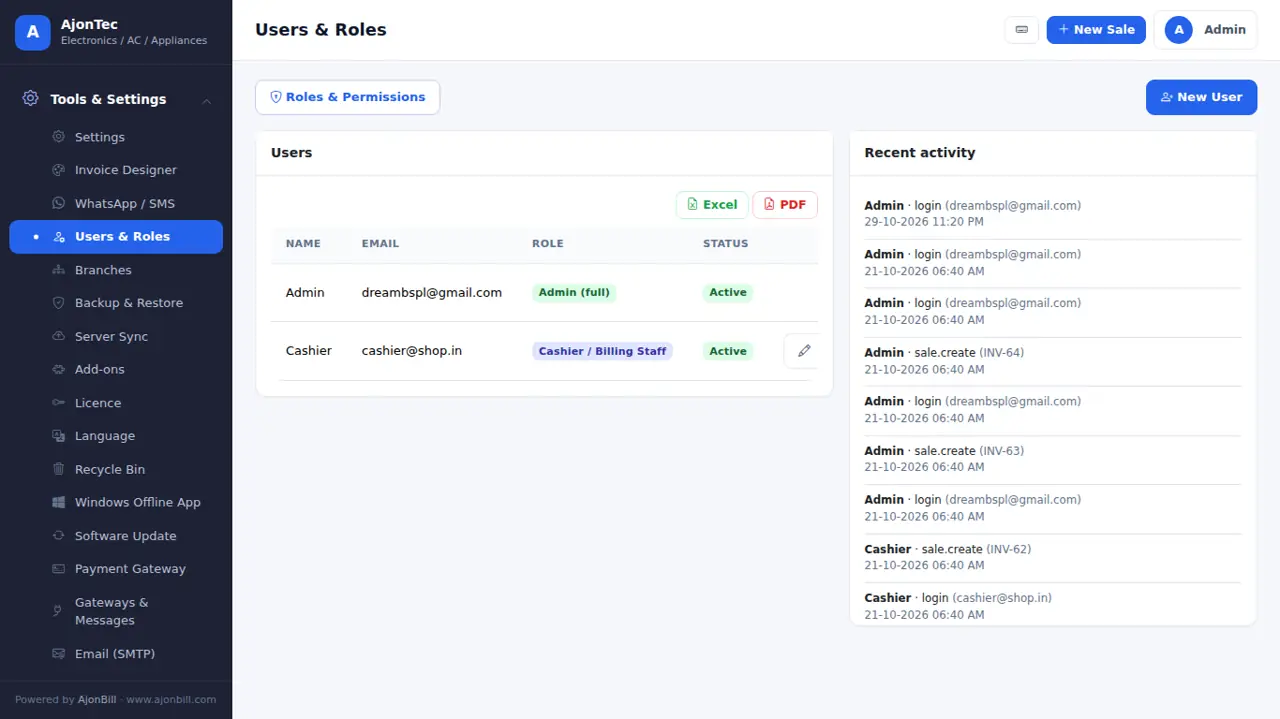
- Tools & Settings → Users & Roles → Add user with email, password and role.
- Open a role: start from Cashier, Salesman, Accountant or Manager, then tick View / Add / Edit / Delete per module.
- Billing controls: change item rate, give discount, see purchase price & profit.
19. Backup, restore & fresh start
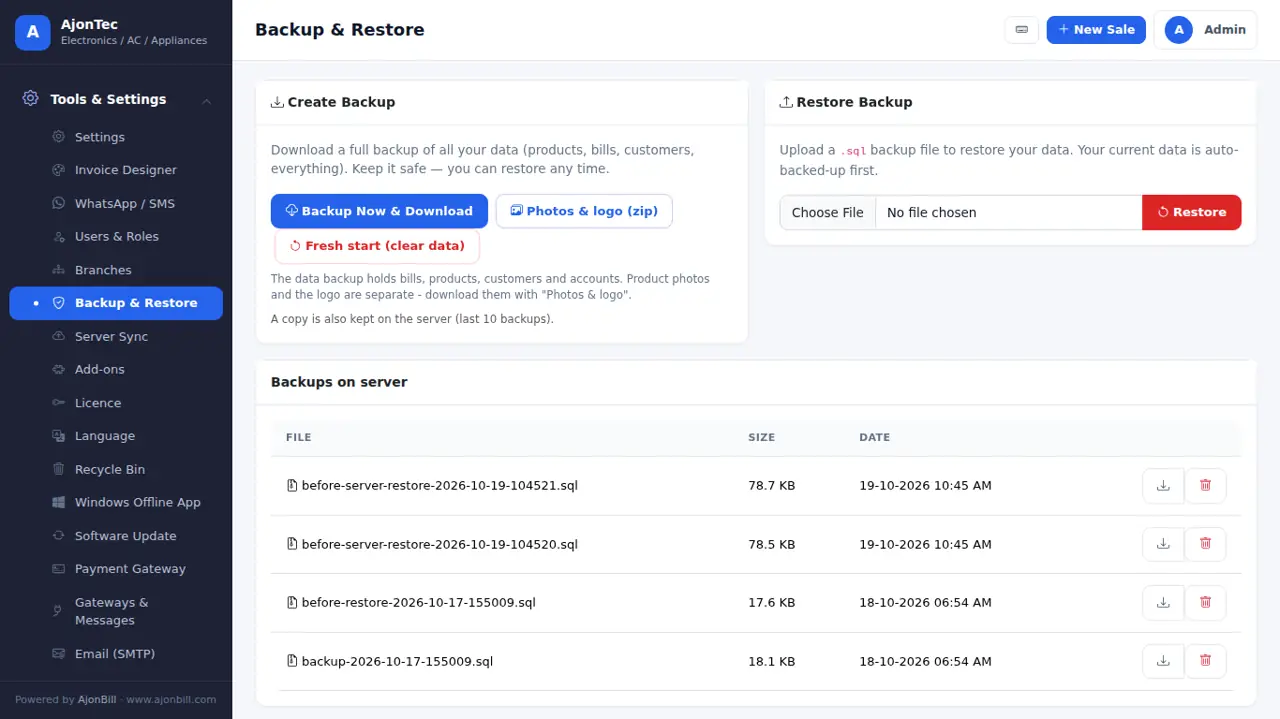
- Backup Now & Download (all data) and Photos & logo (zip) - keep both every week. Restore from a backup file.
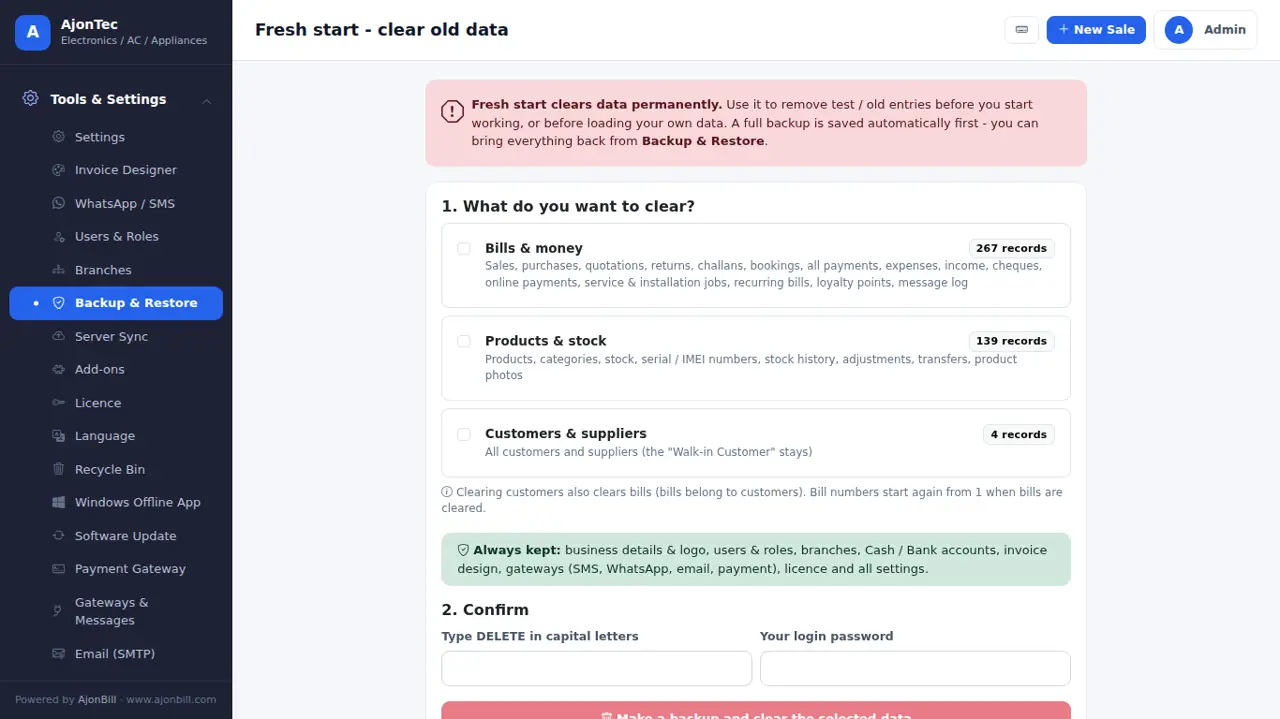
- Fresh start (admin): clear old bills, products or customers before you begin. Business details, users and settings stay; a full backup is made first.
20. Server sync
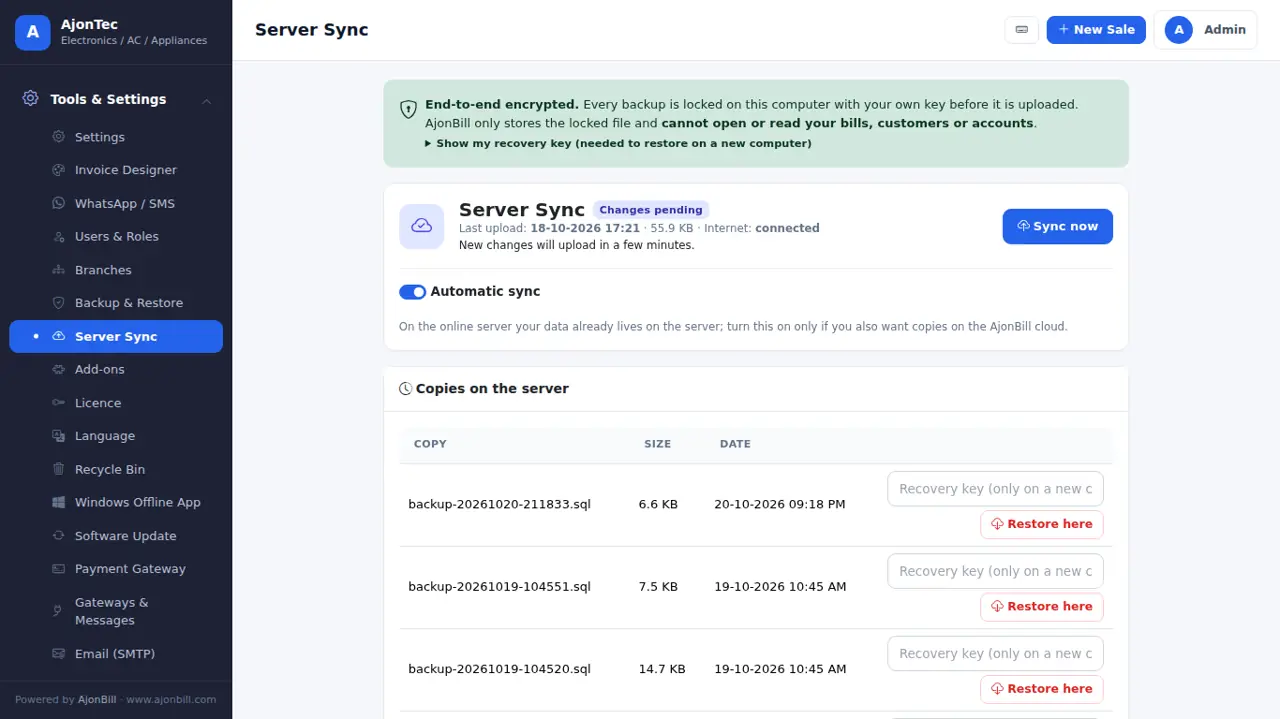
Tools & Settings → Server Sync: your data is encrypted on your computer and uploaded to the AjonBill server automatically. Keep the Recovery Key safe - only you can open the backup.
21. Software update
- When a new version is out you see a note and get an email.
- Tools & Settings → Software Update → Check → Install update now. A backup is made first; your data, settings and design stay.
- Press Ctrl+F5 after the update. See What's new.
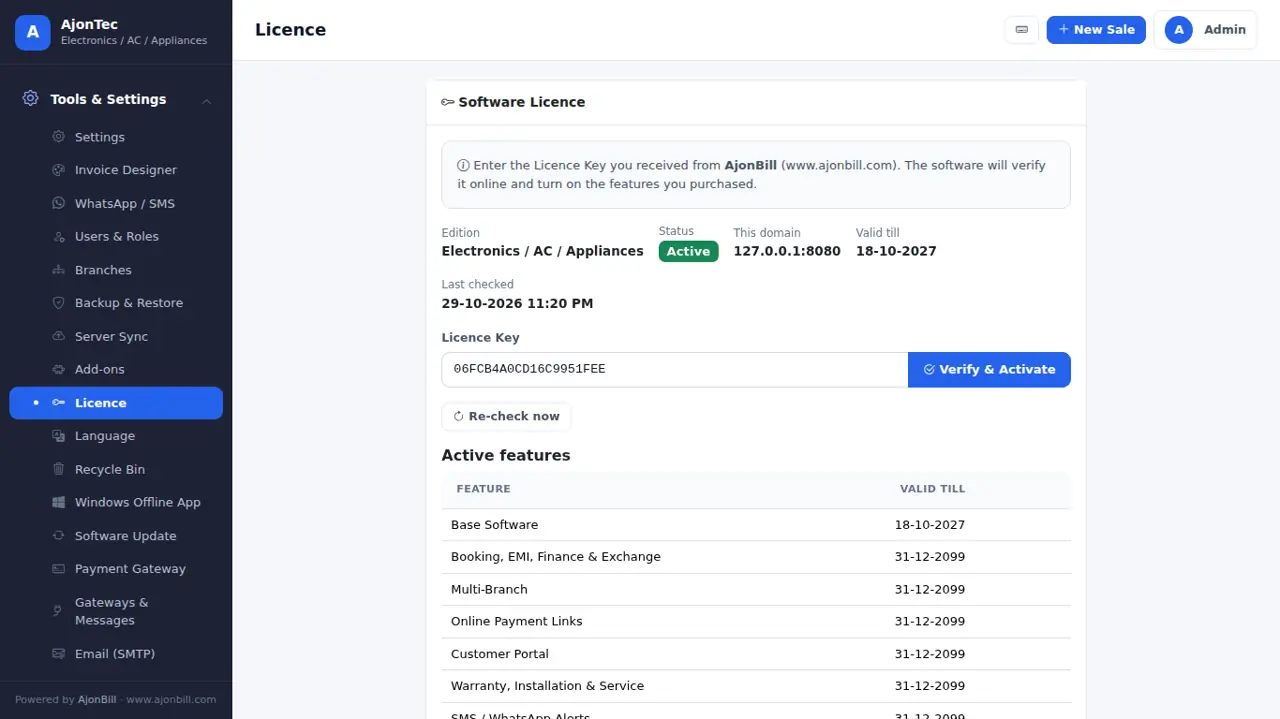
22. Licence
Tools & Settings → Licence: plan, validity, add-ons and Re-check licence. Renew before the end date from here or from your account - it switches on at once.
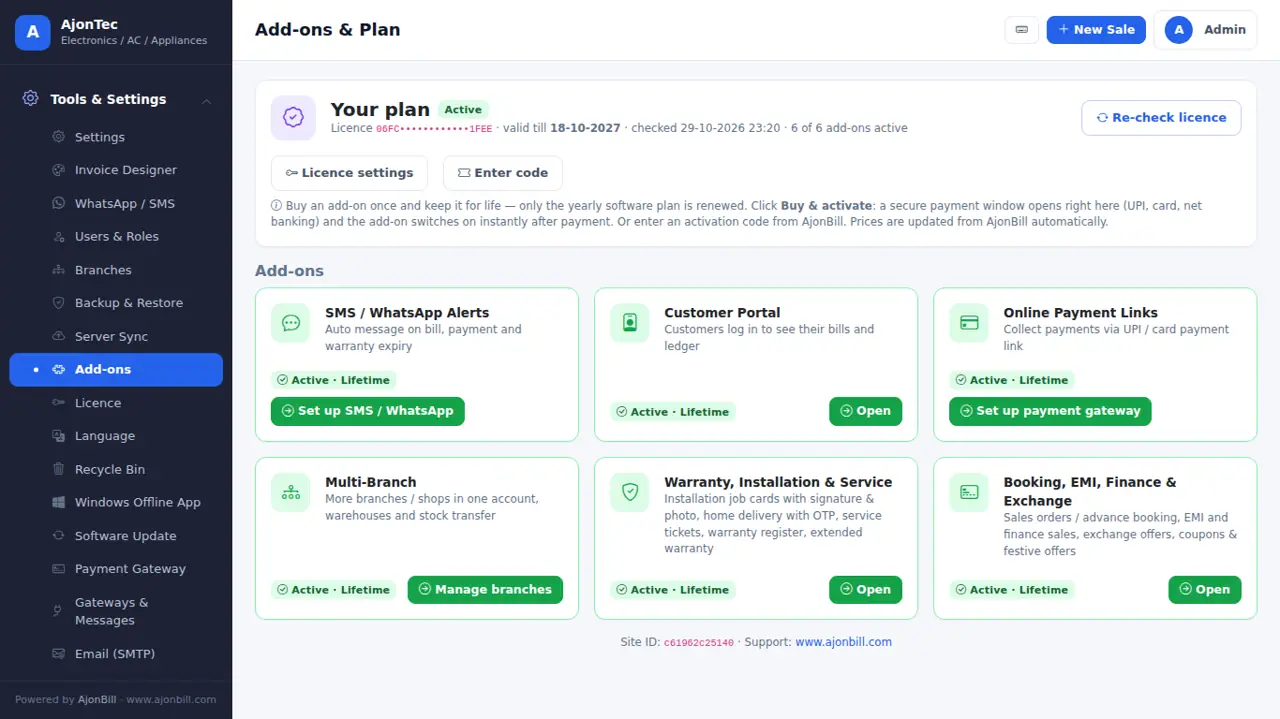
23. Add-ons
Tools & Settings → Add-ons → Buy & activate: a secure payment window opens; the add-on switches on right after payment. One-time payment, yours for life. Options of add-ons you have not bought stay hidden.
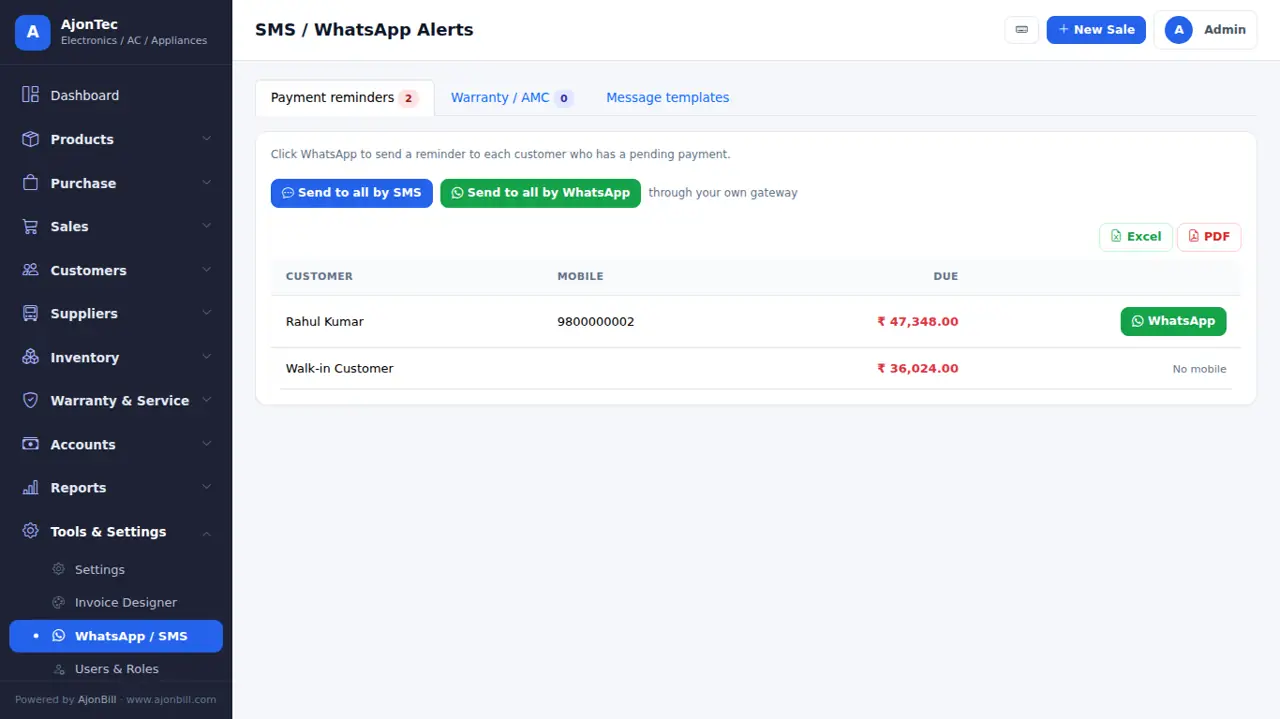
- SMS / WhatsApp Alerts - bill, payment, due and warranty messages.
- Customer Portal - customers see their bills and ledger.
- Online Payment Links - customers pay by UPI / card on your own gateway.
- Multi-Branch - more shops, warehouses, stock transfer.
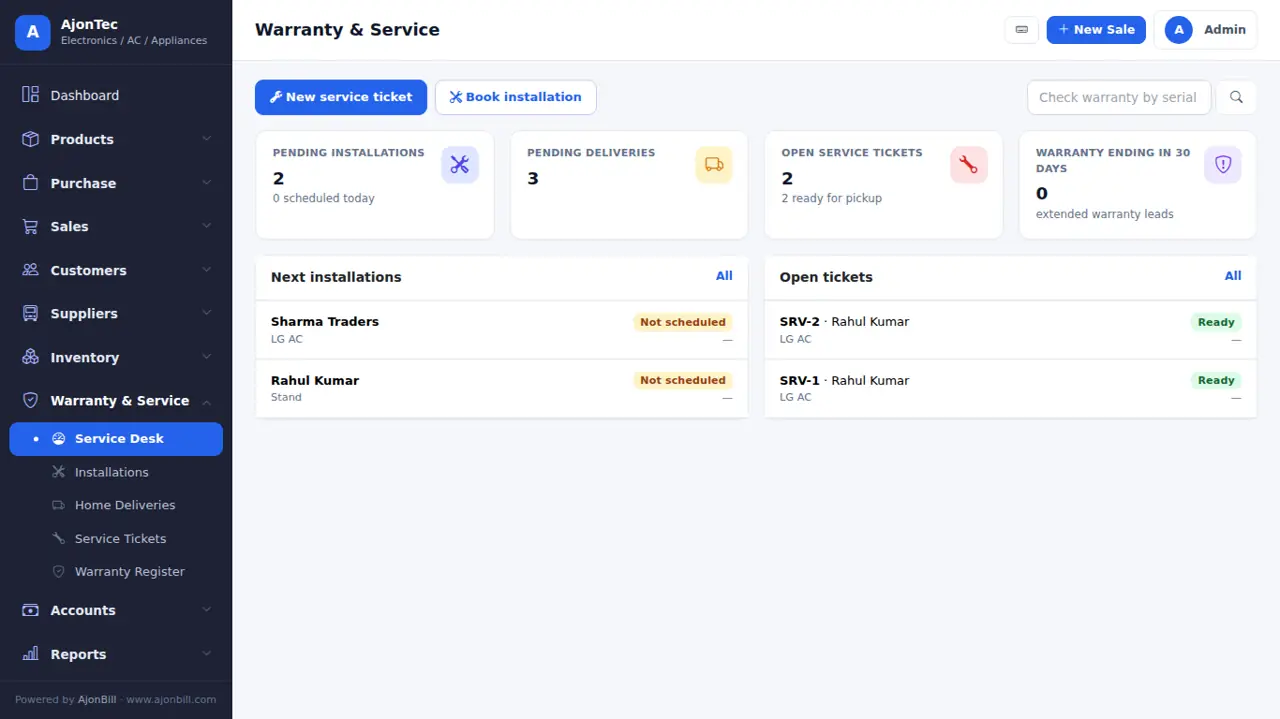
- Warranty, Installation & Service - job cards with signature and photo, delivery OTP, service tickets, extended warranty.
- Booking, EMI, Finance & Exchange - advance booking, EMI / finance sales, exchange, coupons & offers.
24. SMS, WhatsApp, email & payment gateways (your own accounts)
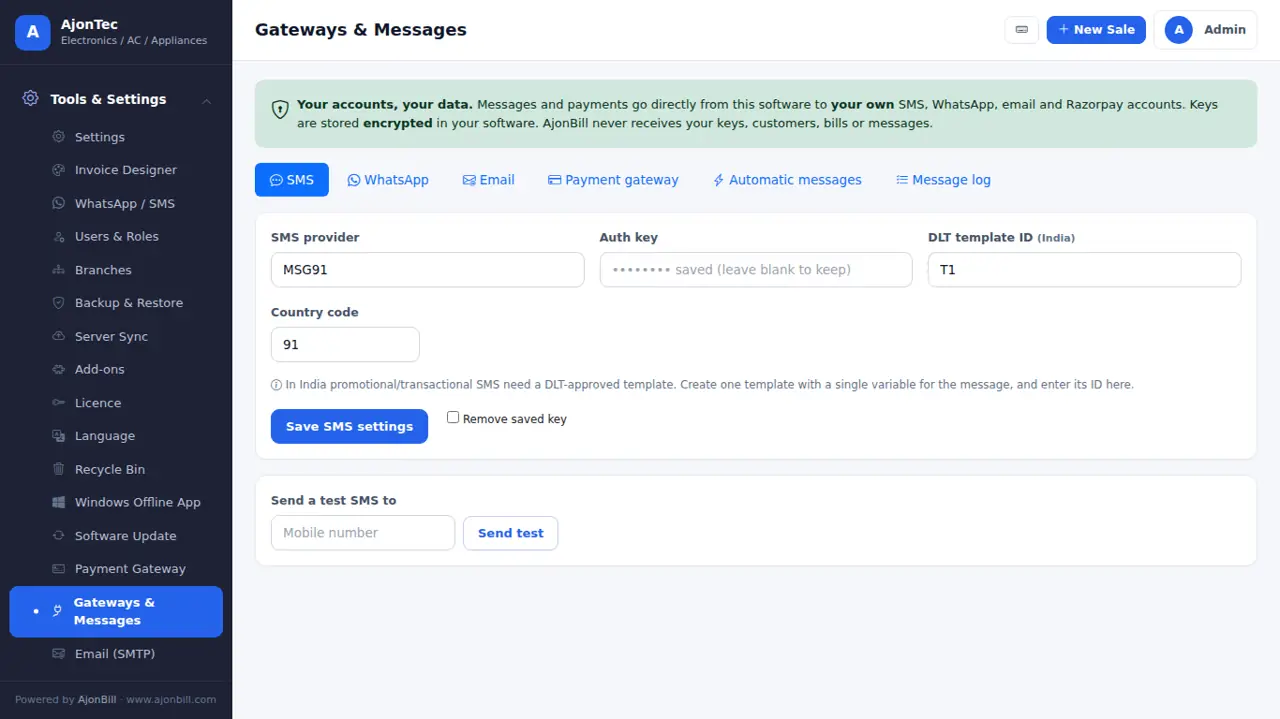
Tools & Settings → Gateways & Messages. Every message and payment uses your own provider account; your keys are stored encrypted. Tabs appear for the add-ons you have.
Email (SMTP) - free
- Gmail: Google Account → Security → 2-Step Verification on → App passwords → create one for "Mail".
- Fill host
smtp.gmail.com, port587, TLS, your Gmail and the 16-letter app password → Send test. - Hostinger mail: host
smtp.hostinger.com, port465, SSL, your mailbox and its password.
SMS (MSG91 / Fast2SMS / Twilio / Textlocal)
- Create an account with the provider and finish DLT registration (required in India) - register your sender ID and templates.
- Copy the API key / auth key, sender ID and template IDs from the provider dashboard.
- Paste them in the SMS tab → Send test.
WhatsApp (Cloud API)
- Meta Business Suite → WhatsApp Manager → add your number → create message templates and wait for approval.
- Meta for Developers → your app → WhatsApp → copy the Phone number ID and a permanent access token.
- Paste them in the WhatsApp tab with the template names → Send test.
Payment gateway (Razorpay, PayU, CCAvenue, Paytm, PhonePe, PayPal)
- Open a merchant account and finish KYC. Add your website domain in the gateway dashboard (Razorpay / CCAvenue need it).
- Razorpay: Dashboard → Account & Settings → API Keys → generate → copy Key ID and Key Secret. PayU: Dashboard → Developer → Key & Salt. Paytm: Developer Settings → API Keys (website
DEFAULTfor live,WEBSTAGINGfor test). PhonePe: Standard Checkout (PG) keys. PayPal: set the currency and rate. - Paste them in the Payment gateway tab, keep Test mode on, make a ₹1 test, then switch to Live.
25. For your business: Hardware / Sanitary
Ready for you: Brand & model, items in Pcs / Mtr / Kg / Ltr, contractor dues.
Turn features on or off any time in Settings → Features (brand & model, serial / IMEI, warranty, batch & expiry, size & colour, MRP, barcode).
26. Problems & solutions
- "Licence not active" - Tools & Settings → Licence → Re-check. Check the computer date & time and the internet.
- Windows: "Could not reach www.ajonbill.com" - check the internet and the computer date & time; the message shows a code for support.
- Windows: "Password is wrong" - use the ajonbill.com account password, or click Email me a code.
- Item not added: "Not enough stock" - add stock through a Purchase or turn on Allow negative stock.
- Logo / photos missing after moving - restore the Photos & logo (zip) into
storage/uploads. - Need help? My Account → Support tickets, or WhatsApp / email on ajonbill.com/contact.
27. What's new (version history)
v3.7.2 · 30 Oct 2026 - User manual in the software
- New: User Manual link at the bottom of the menu - opens the complete guide of your software
- New: online user manual with real screens for every module, with the version and what is new in each update
- New: software for every business - General Store, Grocery / Kirana, Medical / Pharmacy, Garments / Footwear, Hardware / Sanitary, Mobile / Computer Shop and Restaurant / Cafe
- Each starts with its own categories, units, bill style and fields (batch & expiry, size & colour, IMEI, table no.)
- Same licence, updates, Windows app, server sync and all billing features
v3.7.0 · 29 Oct 2026 - Software for every business
- New: software for every business - General Store, Grocery / Kirana, Medical / Pharmacy, Garments / Footwear, Hardware / Sanitary, Mobile / Computer Shop and Restaurant / Cafe
- Each starts with its own categories, units, bill style and fields (batch & expiry, size & colour, IMEI, table no.)
- Same licence, updates, Windows app, server sync and all billing features